1-866-315-4750
Menu
AI Creations Now Moonlight Sunshine Game Streaming Companion App. Client and host diagnostics, live monitoring, optional client Ultra Trace, 100% free Windows x64 software. Independent companion.

100% FREE SOFTWARE • TWO WINDOWS APPS

Moonlight / Sunshine
Game Streaming Companion App

A stutter on your screen can start on either computer—or anywhere along the network path. Capture client and host evidence from the same streaming session, then narrow down what happened.

MOONLIGHT LOGGER 2.1.9HOST COMPANION 1.0.8WINDOWS X64

Independent diagnostics by AI Creations Now. Official Moonlight and Sunshine software are required separately.

Immediate access after checkout. Optional $5 non-charitable donation. Stripe redirects you to the download page after successful payment.

Instant Download — $5 Donation

100% free email delivery. Opens your email app with a completed request. Review it and press Send. Allow up to 24 hours for your link.

Regular Download — Free
Both options include the same complete client and host apps. No subscription. No features held back.
See the setup guide Watch the product video

YOUR STREAM. BOTH SIDES OF THE STORY.

Turn a bad session into useful evidence.

Run Moonlight Logger on the Windows computer you play on. Run the portable Host Companion on the Windows computer running Sunshine.

Watch network response, jitter, packet loss, system load, and relevant streaming logs. Reproduce the issue, stop monitoring, and export both diagnostic ZIPs. Their UTC timestamps help you compare what the client and host saw at the same moment.

Moonlight / Sunshine Companion walkthrough

The walkthrough starts muted where your browser permits autoplay. Use the controls for sound, pause, or full screen.
Keep your normal streaming setup.

Moonlight is the streaming client; Sunshine is the streaming host. Our apps add diagnostics alongside them. Establish a working Moonlight-to-Sunshine stream first. These tools do not provide streaming, pairing, a relay, or a replacement for either official application.

ONE DOWNLOAD PACKAGE. TWO ROLES.

The right tool on each computer.

Each companion records its own computer and probes the opposite endpoint plus its local gateway. No separate app-to-app pairing is required.

01 / THE COMPUTER YOU PLAY ON

Moonlight Logger

CLIENT APP • VERSION 2.1.9 • INSTALLER

Install the logger on your Windows Moonlight client. Select the Sunshine host you stream from, then choose Standard monitoring or the optional Ultra Trace mode.

  • Host and gateway response, jitter, and packet loss
  • Wi-Fi or Ethernet link details and traffic
  • CPU, memory, DPC / ISR, GPU, and Moonlight activity
  • Moonlight log faults and automatic incident timelines
MONITORING TARGETThe Sunshine host’s IP or hostname

02 / THE COMPUTER RUNNING THE GAME

Sunshine Host Companion

HOST APP • VERSION 1.0.8 • PORTABLE EXE

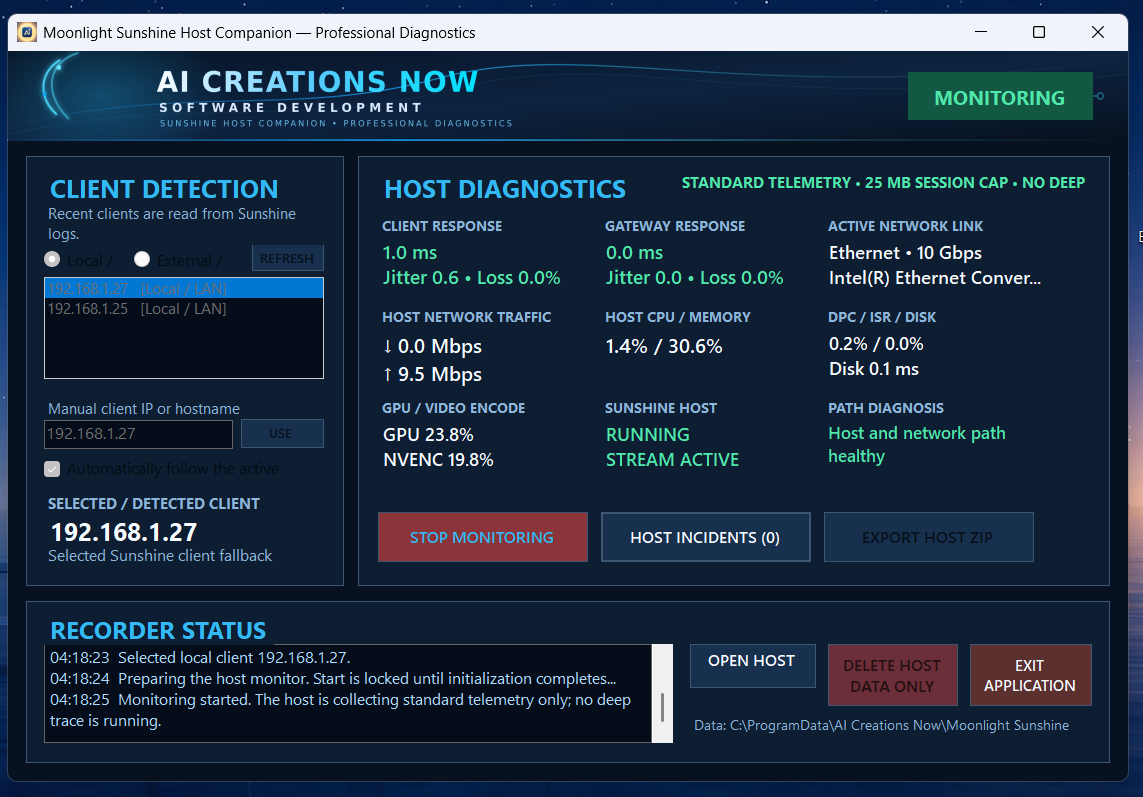
Copy the portable EXE to your Windows Sunshine host—for example, its Desktop. Open it, select the client you are streaming to, and start monitoring.

  • Client and gateway response, jitter, and packet loss
  • Host link traffic, errors, and discards
  • CPU, memory, disk, DPC / ISR, and GPU encode activity
  • Sunshine process state, log warnings, and incidents
MONITORING TARGETThe Moonlight client’s reachable IPv4 or hostname

Two local logs. One shared timeline. The companions do not exchange diagnostic data directly. Export both ZIPs and compare their UTC timestamps; keep both computers’ clocks accurate for useful correlation.

GUIDED SETUP

Select. Monitor. Reproduce. Export.

A practical first session, from choosing the correct addresses to collecting evidence from both ends.

01

Start your normal stream

Install the official Moonlight client and Sunshine host separately, pair them normally, and confirm streaming works. Install our Logger on the client; put our portable Host Companion on the host.

02

Select the host on the client

In Moonlight Logger, choose Local / LAN or External / WAN. Double-click the correct host from Moonlight’s saved settings or recent logs. If it is missing, enter its IP or hostname and choose Use address.

03

Select the client on the host

In Host Companion, choose Local / LAN or External / WAN and double-click the correct client discovered from Sunshine. Alternatively, enter the client’s reachable IPv4 address or hostname and choose Use address.

04

Start both monitors

Check the selected endpoints, then press Start Monitoring in each app. Both open with monitoring stopped. Automatic follow can track the active streaming peer; turn it off when you want to keep your manual target fixed.

05

Play through the problem

Begin with Standard monitoring. Watch the client and host metrics while reproducing the stutter or connection issue. Use client Ultra Trace only when deeper Windows evidence is needed.

06

Export the same session

Stop both monitors. Export the client ZIP to Documents / Moonlight Logger Exports and the host ZIP to the Desktop. Keep the pair together and compare the incident times in UTC.

Local network or remote connection?

Use the address reachable from the computer doing the monitoring. On a home LAN that is normally the other computer’s local address. Across networks, use an already reachable remote endpoint or your existing VPN’s address. A private address on another network is not automatically reachable over the internet.

Manual entry helps when discovery or name resolution fails; it does not bypass NAT or firewall restrictions. Some endpoints block ICMP probes. An unavailable ping is not, by itself, proof of a streaming failure; passive local metrics can still provide evidence.

ACTUAL WINDOWS SOFTWARE

Your dashboards. Your incident evidence.

Follow the real client and host applications from live monitoring to incident review. Select any screenshot to open the full-size image. Addresses and readings shown are examples from one system.

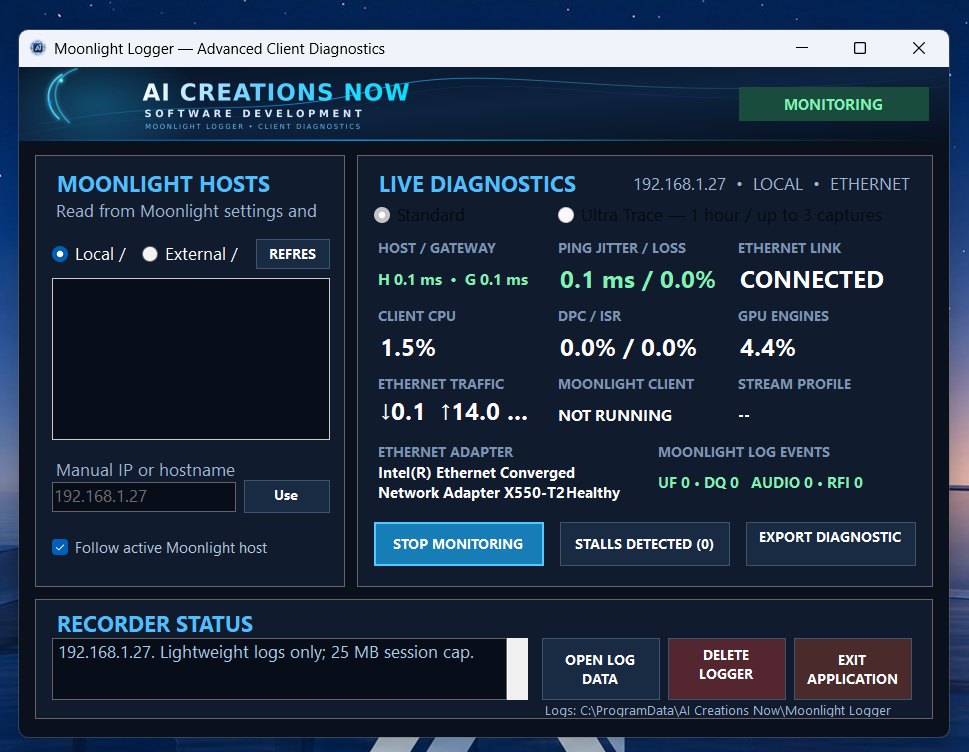
Moonlight Logger client dashboard showing host selection, live network and system diagnostics, and recorder controls
1
Client: select the host and monitor

Choose the Sunshine host from the list or enter its IP or hostname. Start Monitoring to watch host and gateway response, jitter, packet loss, client load, and Moonlight log events.

Sunshine Host Companion dashboard showing client detection, host network response, GPU encode activity, and Sunshine state
2
Host: select the client and monitor

On the Sunshine computer, select the client you are streaming to. Start Monitoring to review client and gateway response, host load, GPU encode activity, and Sunshine state.

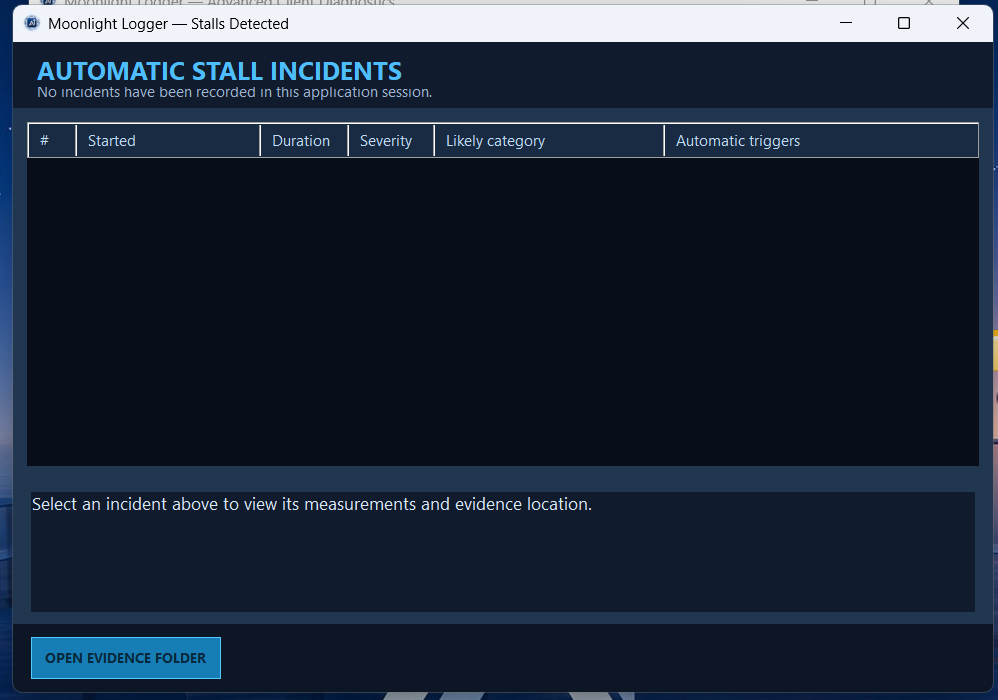
Moonlight Logger Automatic Stall Incidents window with an empty incident list and Open Evidence Folder button
3
Client: review detected stalls

Open Stalls Detected to review recorded incidents. When an incident is available, select it to inspect its measurements and evidence location. This example shows an empty incident list.

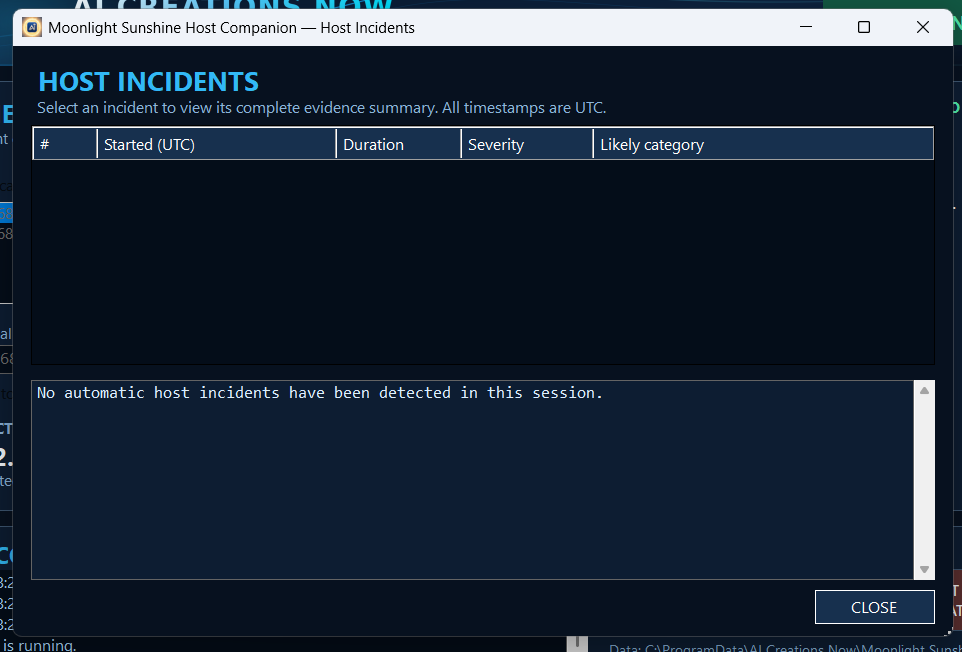
Sunshine Host Companion Host Incidents window showing UTC columns and no automatic incidents in the example session
4
Host: compare the incident timeline

Open Host Incidents to inspect host-side evidence. Compare recorded UTC times with the client export from the same session. This example shows a session with no detected host incidents.

START LIGHT. GO DEEP WHEN NEEDED.

Standard monitoring or client Ultra Trace.

Routine diagnostics stay lightweight. Deeper Windows traces are an explicit, client-side choice.

Monitoring modes included in the free package
ModeWhere it runsWhat you collect
Standard monitoringClient and hostLive metrics, nominal four-times-per-second endpoint and gateway probes, rolling jitter and loss, incidents, relevant application logs, and Windows evidence.
Ultra TraceMoonlight Logger client onlyOptional Windows Performance Recorder evidence. One fixed one-hour watch period; up to three saved ETL captures for qualifying in-stream incidents, subject to available space and safety limits.
Paired ZIP exportsExport separately from each appClient and host evidence you can review together by UTC time. The host app does not record WPR / ETL traces.
Ultra Trace needs room to work.

At least 12 GB free is required to start; at least 6 GB is needed before another capture or re-arm. Retained client ETLs have a 9 GB session ceiling. Individual captures can be around 2 GB or larger, and ZIP export needs additional working space. Standard monitoring does not create ETL files.

FOLLOW THE EVIDENCE

Narrow the problem before changing settings.

Diagnostic clues help you decide what to investigate next. They do not guarantee a root cause or automatically repair a stream.

Network path

Compare endpoint and gateway response to spot where latency or loss begins. Examine Wi-Fi signal, Ethernet traffic, and adapter errors in the same interval.

Client pressure

Look for client CPU, GPU, driver or scheduler pressure alongside Moonlight fault events. Investigate a difficult incident further with optional Ultra Trace.

Host pressure

Check Sunshine warnings, host load, disk latency, and GPU video-encode counters. Compare the host’s timeline with the matching client incident.

BEFORE YOU START

Built for Windows diagnostics.

The streaming applications support their own platforms. This companion package contains Windows x64 diagnostic tools.

What you need

  • A Windows x64 Moonlight client computer and Windows x64 Sunshine host for diagnostics at both ends.
  • Official Moonlight and Sunshine installed and configured separately.
  • Administrator permission for the diagnostic applications.
  • Available disk space for logs, exports, and optional client traces.
  • Windows Performance Recorder available for Ultra Trace; GPU counter availability depends on the display driver.

Useful limits to understand

  • Discovery depends on saved settings, recent logs, and visible active connections. Manual endpoint entry is available.
  • Configured resolution and FPS are stream targets read from Moonlight—not measured display FPS.
  • ICMP packet loss is a diagnostic probe result, not a direct measurement of lost video packets.
  • Short-lived stalls, blocked probes, and unavailable counters can limit the evidence.
  • No automatic tuning, streaming relay, or guaranteed performance improvement.

LOCAL EVIDENCE. YOUR CHOICE TO SHARE.

You control the diagnostic files.

Monitoring starts only when you choose it. Exporting creates a local ZIP; it does not automatically upload that ZIP to us or an AI service.

Review before sharing

Logs can contain IP addresses, computer or user names, network details, process information, and application events. Inspect exports before sending them to support or a third-party analysis service.

Understand local collection

Client Wi-Fi details may trigger Windows’ location indicator. Host discovery may briefly inspect an IPv4 / UDP header to find the active peer; it does not retain packet payloads or packet history.

Keep storage in view

Standard telemetry is capped at 25 MB per session, with session retention limits. Client ETL captures are separate and can be large. Use each app’s data controls to review or remove its own diagnostics.

COMMON QUESTIONS

Clear answers before your first session.

Is the software really free?

Yes. Both complete apps are available at no cost through the Regular Download email request, with delivery taking up to 24 hours. The optional $5 non-charitable donation gives you access to the download page immediately after Stripe checkout. It does not unlock extra features.

Why does Instant Download open Stripe?

That option is our immediate-download route after an optional $5 non-charitable donation. After successful checkout, Stripe redirects you to a branded download page with the ZIP link. If the redirect or download fails, contact [email protected] with your Stripe receipt.

Does the free button send an email automatically?

No. It opens your configured email application with the recipient, subject, and request body filled in. You review it and press Send. If you use webmail or no mail app opens, send the request yourself to [email protected].

Do the two companion apps connect directly to each other?

No. They monitor locally and probe the other endpoint and their own gateway. Moonlight Logger targets the Sunshine host; Host Companion targets the Moonlight client. Export both ZIPs to correlate evidence by UTC timestamp.

Can I monitor a remote stream?

Yes, when the selected endpoint is reachable from the monitoring computer. Choose External / WAN or enter the correct reachable IP or hostname. An existing VPN address may be useful across separate networks. Manual entry does not create connectivity or open ports.

Do I need both apps running?

Each app can collect its own side independently. Run both during the same session for evidence from both ends. Ultra Trace is available only in Moonlight Logger on the client; the Host Companion uses standard telemetry.

Does this replace Moonlight, Sunshine, or their support?

No. Obtain the official streaming applications separately. Our tools provide independent diagnostic evidence alongside them. We do not provide streaming, represent their developers, or guarantee that every problem can be identified or fixed.

100% FREE • CLIENT + HOST INCLUDED

Your next stutter deserves a better explanation.

Get both companion apps, monitor the same session, and keep the evidence from each end. Optional donations help us keep customer service and future upgrades coming.

Immediate access after checkout. Optional $5 non-charitable donation. Stripe redirects you to the download page after successful payment.

Instant Download — $5 Donation

100% free email delivery. Opens your email app with a completed request. Review it and press Send. Allow up to 24 hours for your link.

Regular Download — Free
Both options include the same complete client and host apps. No subscription. No features held back.

INDEPENDENT COMPANION • THIRD-PARTY SOFTWARE REQUIRED

Made for streaming enthusiasts. Independently developed.

Moonlight / Sunshine Game Streaming Companion App, Moonlight Logger, and Sunshine Host Companion are diagnostic tools developed and supported by AI Creations Now Software Development. They observe system and network evidence around a stream; they do not supply, replace, or resell the official streaming applications.

Independence and names. AI Creations Now is not affiliated with, sponsored, endorsed, funded, or paid by the Moonlight Game Streaming project, LizardByte, the Sunshine project, or their contributors, and does not act as their sales agent or advertising representative. Third-party names and marks belong to their respective owners and are used only to identify compatibility. Moonlight and Sunshine must be obtained separately and remain subject to their own licenses and terms. Our original launch artwork is illustrative; it is not an official third-party logo, game endorsement, or application screenshot.

Free software and optional support. The complete companion package is available free by email request. The optional $5 non-charitable donation to AI Creations Now provides immediate access to the download page after Stripe checkout and supports our customer service and product upgrades. It is not a charitable contribution, a payment to the Moonlight or Sunshine projects, or a purchase of a license for either third-party product. The software and included features are the same whichever delivery route you choose.

Diagnostic scope and responsibility. Results depend on your system, drivers, network, and available logs. They are investigative evidence, not a guarantee of a specific cause, repair, or performance improvement. Review diagnostic files before sharing them and monitor available storage when using deep traces. To the extent permitted by applicable law, the companion software is provided “as is,” without warranties of merchantability, fitness for a particular purpose, or uninterrupted operation. To that extent, AI Creations Now is not liable for indirect or consequential loss, data loss, or business interruption arising from its use. Nothing in this notice excludes rights or liability that cannot lawfully be excluded.