Skip to content
1-866-315-4750
Menu
Wi-Fi Commander — a gold wireless signal emblem in a silver compass, with a midnight-blue connected-home backdrop

YOUR HOME. YOUR NETWORK. IN FOCUS.

Wi-Fi Commander

Find the weak spots in your Wi-Fi. Understand your Internet connection. Turn your Windows laptop or tablet into a portable network inspection station—and keep useful wired-network tools at your desk.

HOME WI-FI & MESHWI-FI + ETHERNET TOOLSWINDOWS 10 / 11 · X64
Download Two-Day Free Trial Purchase License Immediately Try it free for two days. $4.99 lifetime.
One computer. No subscription.
Explore your home Wi-Fi

MAKE SENSE OF THE CONNECTION

Better information.
Better placement.

The room where you work, the sofa where you stream, the upstairs corner that never quite connects. See how your Wi-Fi signal changes in the places that matter.

Choose your own router and mesh points, carry a compatible Windows laptop or tablet around your home, and compare the readings. Then use Internet health checks, live traffic monitoring, and local-network tools to look beyond the Wi-Fi bars. Current Incompatibility Notice with Ultra-Wide and Curved Monitors Squishing our GUI. We are working on a hotfix.

Product preview

The preview starts muted automatically where your browser permits autoplay. Use the controls for sound, pause, or full screen.
ONE TOOLKIT. EVERYDAY ANSWERS.

From a weak signal to a clearer picture.

Start with the question you want to answer. Wi-Fi Commander brings 15 focused functions into one application, with dedicated screens for your most useful readings.

01 / COVERAGE

Where is my Wi-Fi stronger?

Follow your router and mesh nodes, compare nearby signals, and make informed placement decisions.

Explore mesh & coverage →
02 / CONNECTION

Why does it feel slow?

Check Internet response, connection consistency, download performance, and current network traffic.

See connection tools →
03 / VISIBILITY

What can this computer see?

Review visible LAN devices, inspect local ports, and open the network test you need from one menu.

Look inside your network →

HOME WI-FI MESH NETWORK ANALYZER

Your rooms. Your router. Your mesh.

Focus on the equipment you choose. Follow your main router, mesh nodes, and access points while you compare coverage around the house. Use the readings to decide where a different placement might help.

STEP 01

Choose your equipment

Select your main router and the mesh points or access points you want to follow. Give them familiar names, like Office or Upstairs.

STEP 02

Walk and compare

Carry your Windows laptop or tablet to the places you use Wi-Fi. Watch signal strength, signal quality, and the available bands.

STEP 03

Make an informed move

Compare the current reading with the session average and range. Move equipment if needed, restart your baseline, and check again.

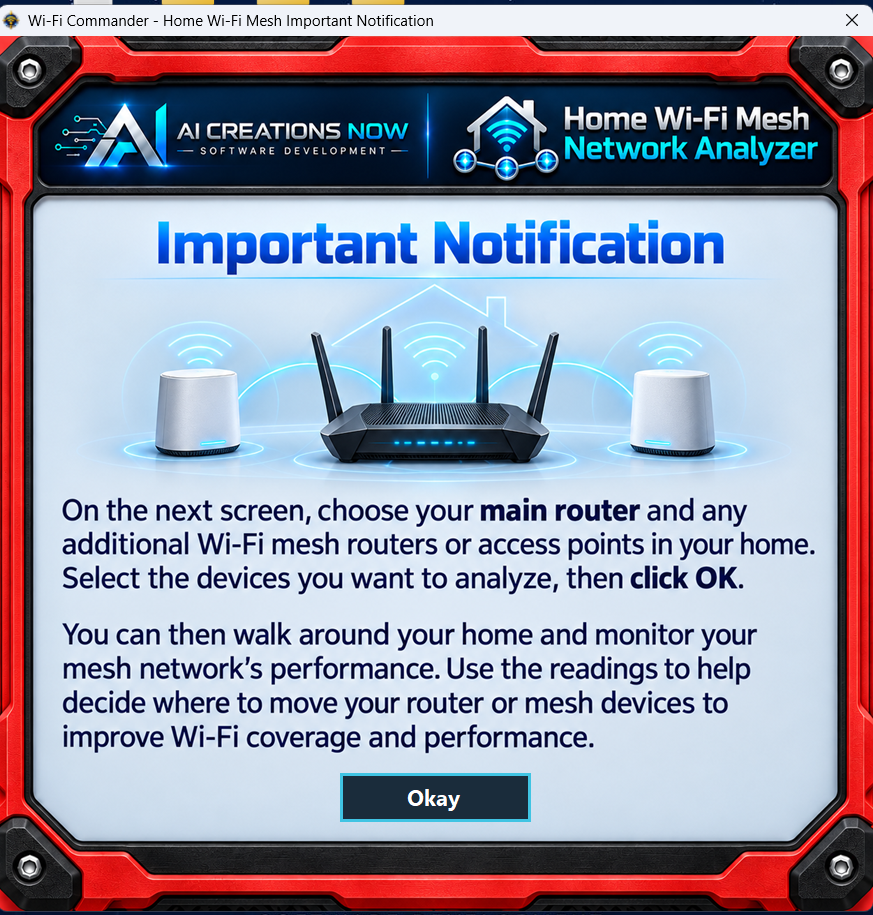
Red Home Wi-Fi Mesh Network Analyzer introduction with router illustration and Okay button
IN-APP GUIDEA simple guide to get you started.

The in-app introduction explains which equipment to select before you begin.

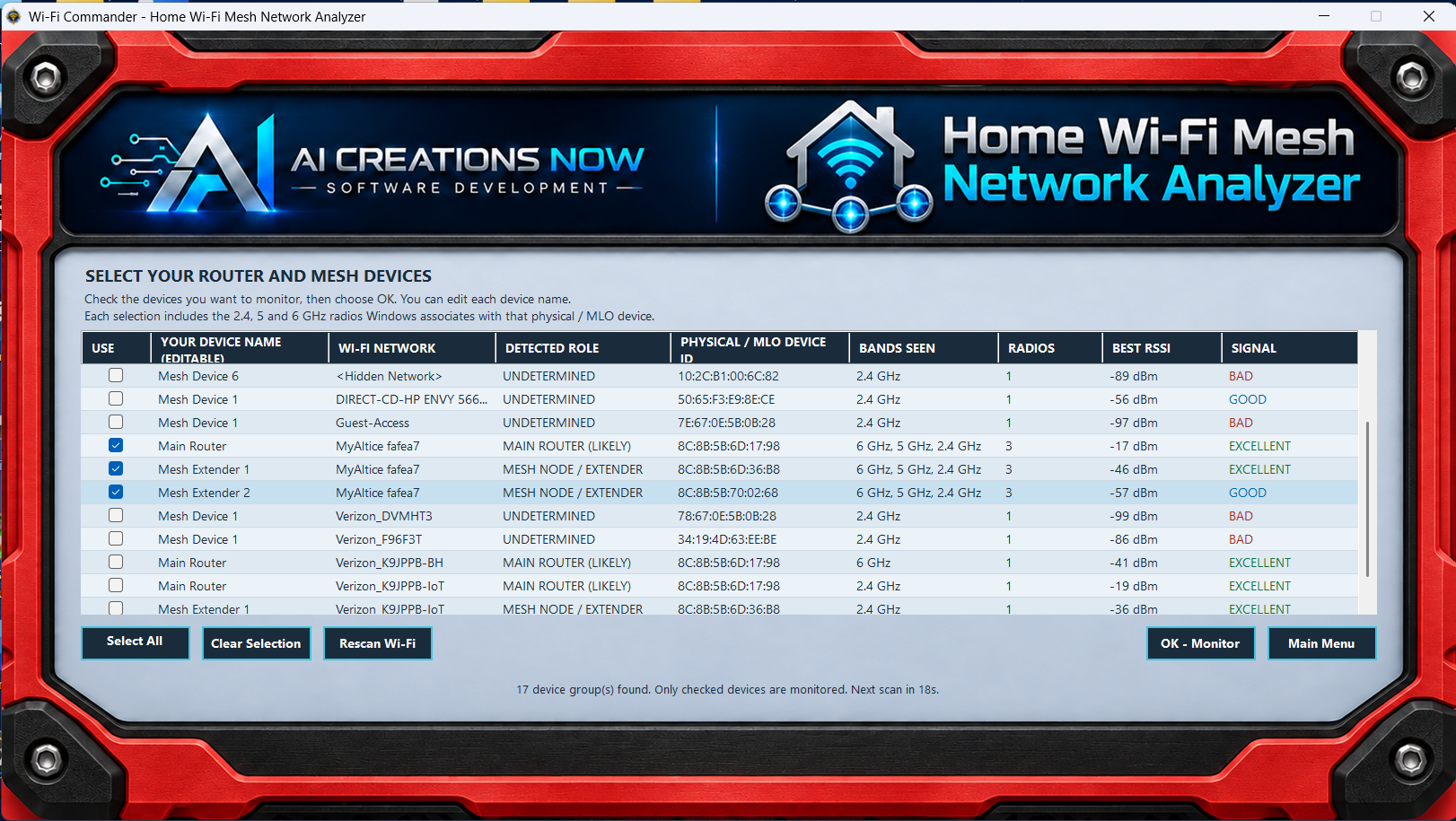
Actual mesh device selection screen with editable names, checkboxes, bands, signal readings and OK Monitor button
SELECT YOUR DEVICESKeep the focus on your own equipment.

Check the router and mesh devices you want to monitor. Edit their names, rescan nearby Wi-Fi, or change the selection before choosing OK – Monitor.

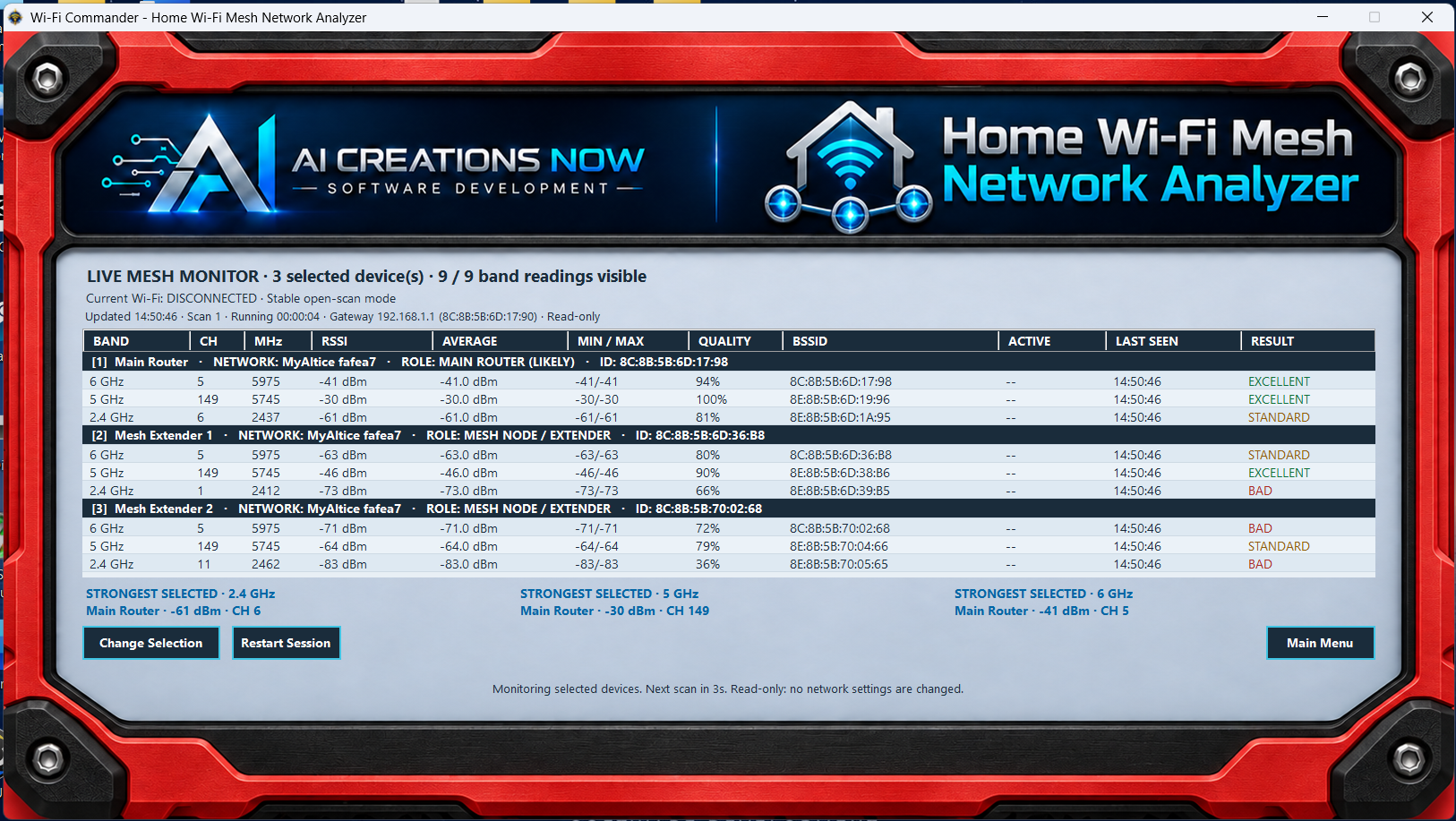
Actual live mesh monitor showing three selected device groups with band, channel, frequency, current signal, average, minimum, maximum and quality readings
LIVE MESH MONITORSee the signal where you actually use it.

Compare current, average, minimum, and maximum signal for your selected devices. Review channel, frequency, signal quality, last-seen time, and the strongest selected signal on each available band.

Signal strength, in dBm
A number closer to zero is stronger. For example, −50 dBm is stronger than −70 dBm.
Available Wi-Fi bands
Compare 2.4, 5, and 6 GHz when your Wi-Fi adapter, driver, Windows, and nearby equipment report them.
A fresh comparison
Use Change Selection or Restart Session to choose different equipment or begin a new baseline.
Moving between mesh nodes?

If your computer connects to a different access point, changes Wi-Fi networks, or disconnects, the monitoring session stops. Restart the session to continue from that connection. The analyzer measures signal; it does not automatically change your router settings.

LIVE WI-FI RANGE FINDER

See more than a row of signal bars.

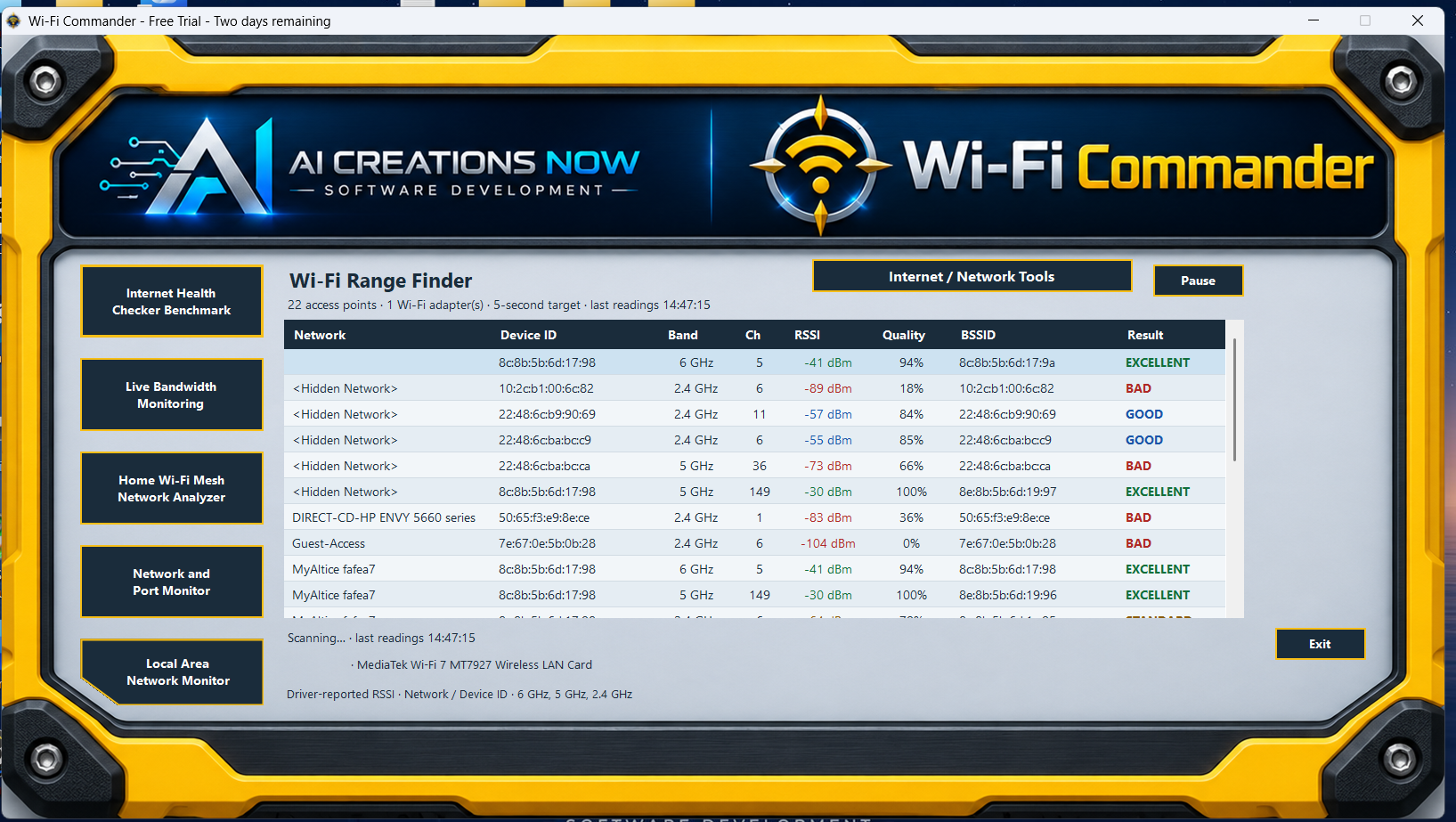
The main yellow dashboard keeps nearby Wi-Fi networks in view. Compare names, bands, channels, and signal ratings as you move, then open the rest of your toolkit from the same screen.

Actual yellow Wi-Fi Commander main dashboard with nearby Wi-Fi network table and six main tool buttons
YOUR MAIN DASHBOARDFind stronger coverage, room by room.

The live table shows nearby access points with signal strength in dBm, signal quality, an easy-to-read rating, and the radio identifiers and device groups reported by Windows. Pause the readings when you want a closer look. The screen’s buttons open Internet Health, Bandwidth, Mesh, Ports, LAN, and Network / Internet Tools.

Range Finder measures signal strength, not distance in feet or meters. An enabled compatible Wi-Fi adapter is required; Ethernet alone cannot scan nearby Wi-Fi.

INTERNET HEALTH + LIVE BANDWIDTH

Understand the connection behind the signal.

A strong Wi-Fi signal is one part of the experience. Check responsiveness and download performance, or keep an eye on how much data your selected adapter is moving right now. Both work with Wi-Fi and Ethernet.

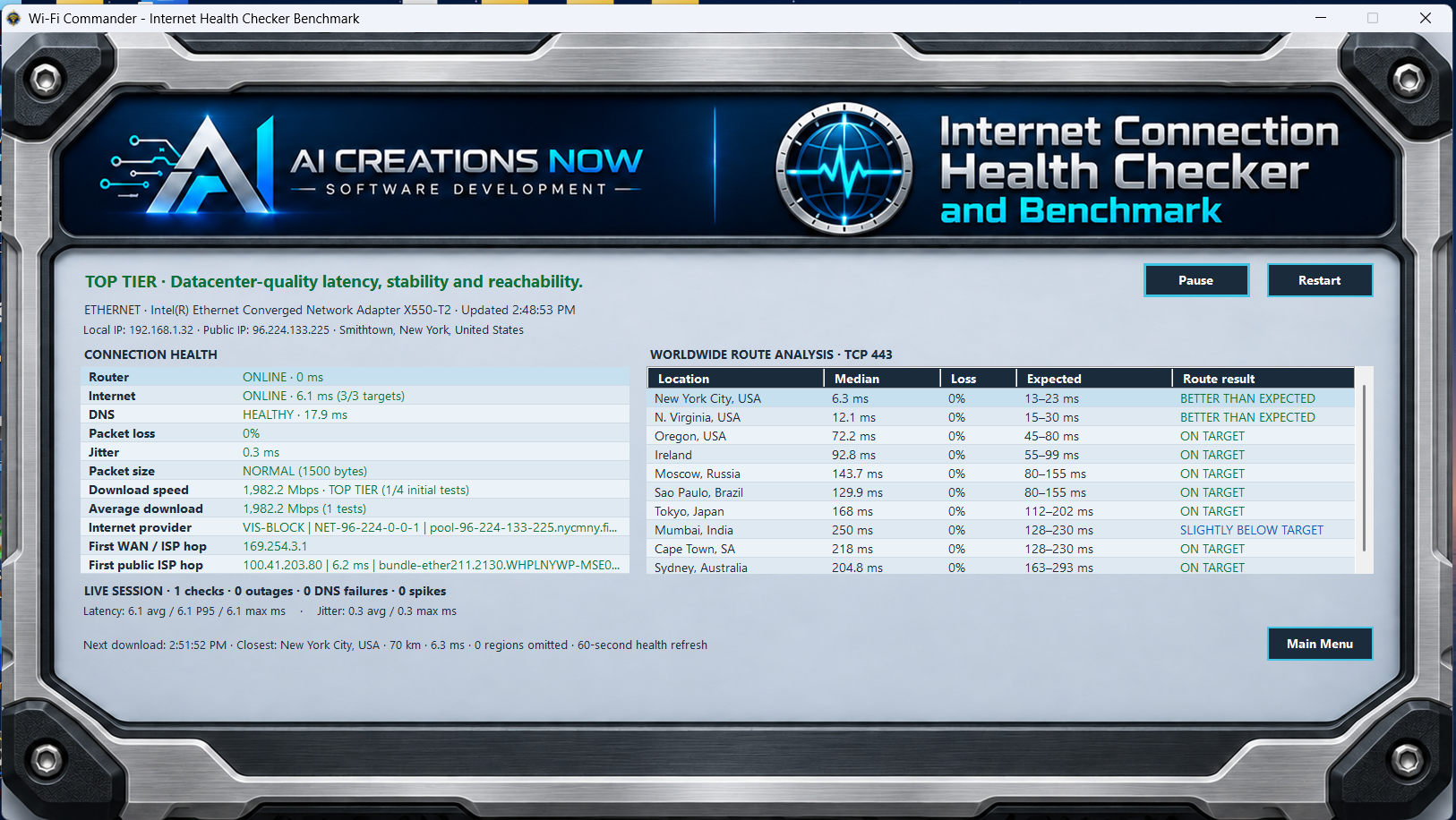
Actual silver Internet Connection Health Checker and Benchmark with connection details, latency, download measurements and worldwide route results
INTERNET CONNECTION HEALTH CHECKER AND BENCHMARKCheck connection health and download performance.

See your router response, Internet response, DNS health, packet size, connection interruptions, and latest and average download results in one detailed view. A regional table compares connection response across up to ten worldwide regions.

Latency is the wait for a response. Jitter is how much that wait varies. Packet loss means some test requests did not return. The session summary tracks response-time and jitter statistics, outages, and spikes so you can see whether problems repeat. Connection details include your provider, public address, and approximate IP location. Pause stops monitoring and transfers; Resume or Restart begins a new session.
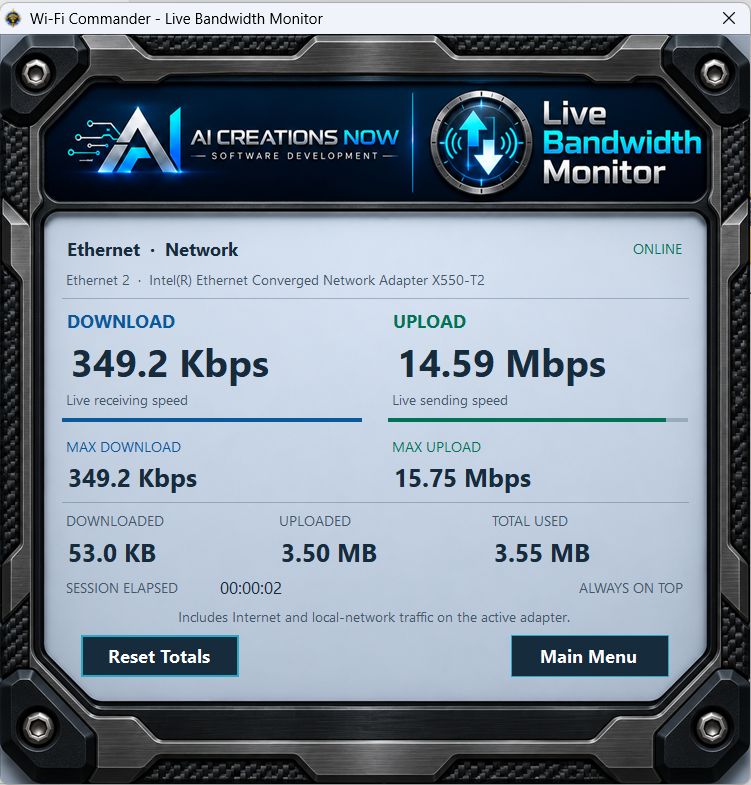
Actual black Live Bandwidth Monitor displaying current Ethernet download and upload rates, peaks and transferred totals
LIVE BANDWIDTH MONITORKeep current traffic in sight.

The compact, always-on-top monitor shows current download and upload rates, peak rates, transferred totals, and elapsed session time. Use Reset Totals when you want a fresh starting point.

This reads traffic on one selected physical adapter, including Internet and local-network traffic. It does not run a speed test or show usage by individual application.
Download benchmarks use Internet data.

Each test downloads about 100 MiB. Four initial tests use about 400 MiB in total, followed by tests no more often than every two hours. Restarting the session begins a new initial series. Keep this in mind on a metered connection. The benchmark tests downloads; upload activity is shown separately in Live Bandwidth Monitor.

LOCAL NETWORK + PORT VISIBILITY

Know what is visible. Understand what is listening.

Explore your home or business LAN from the active connection, then look more closely at the programs and services listening on this computer. These tools work over Wi-Fi or Ethernet.

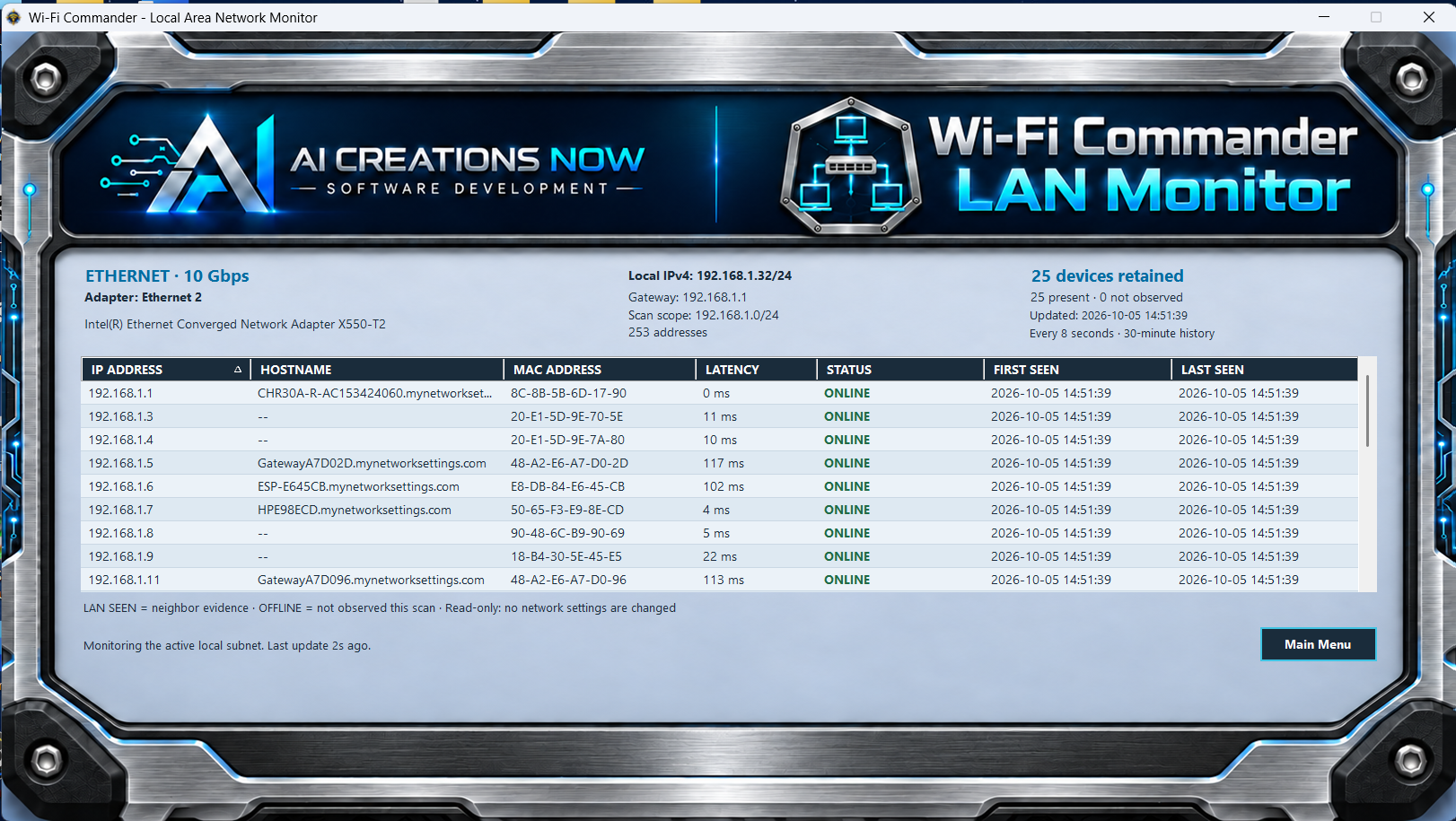
Actual titanium LAN Monitor listing local IP addresses, hostnames, hardware addresses, response times and status
WI-FI COMMANDER LAN MONITORSee the devices your computer can reach.

Review detected local IP addresses, available device names, hardware addresses, response times, and first- and last-seen times. The displayed scan scope tells you which private IPv4 network is being monitored.

Online means a device answered a ping. LAN Seen means it was observed through local neighbor information. Sleeping, isolated, or filtered devices may not appear; this is not an exhaustive inventory of every subnet or VLAN.
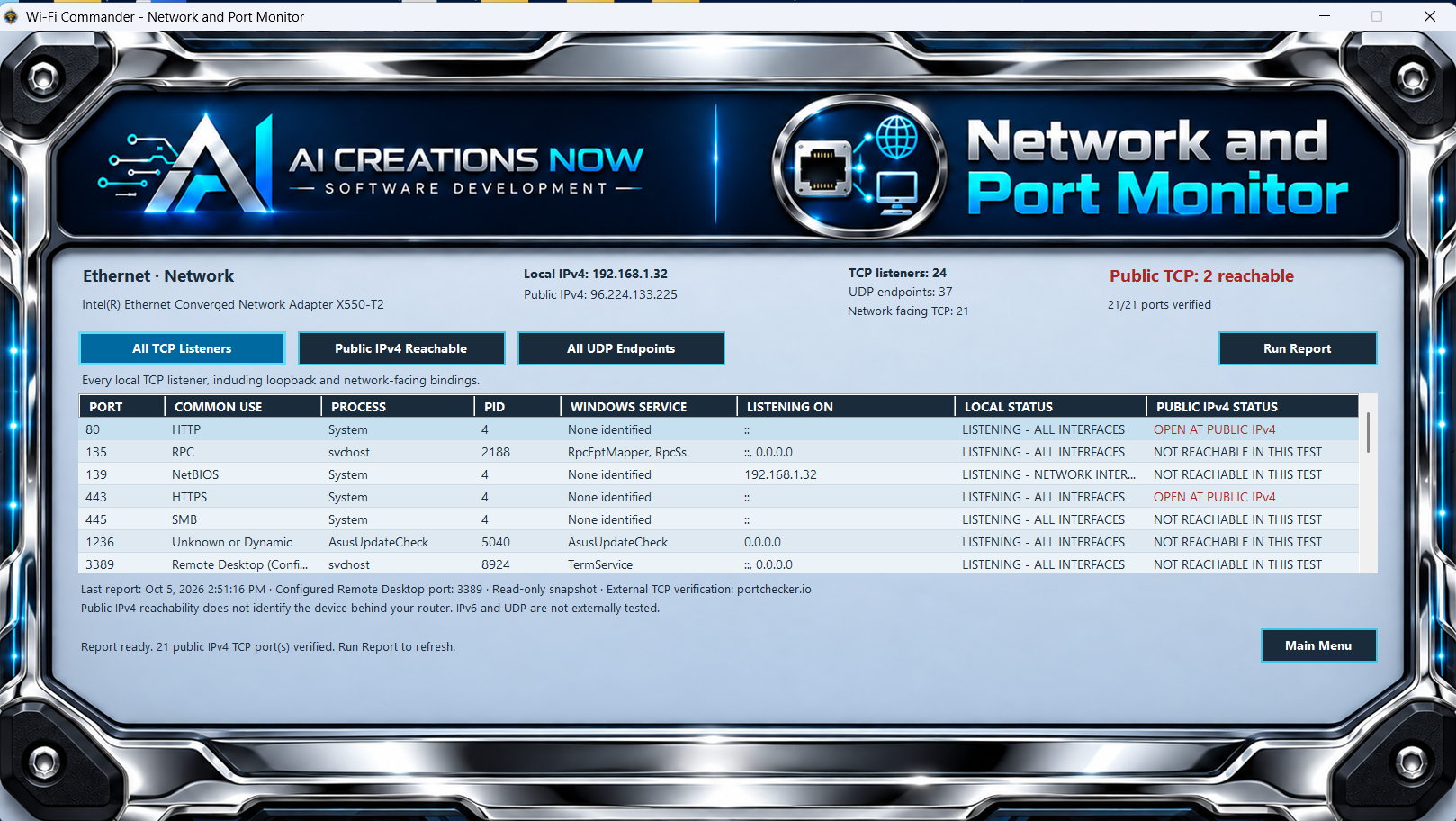
Actual chrome Network and Port Monitor showing listening ports, process names, services, bindings and public IPv4 test results
NETWORK AND PORT MONITORLook at local ports and public reachability.

See TCP listeners and UDP endpoints, the programs and services behind them, and the addresses they use. Switch between all TCP listeners, publicly reachable IPv4 results, and the local UDP list. Use Run Report to refresh.

External checks test public IPv4 TCP ports only. A responding public port may lead to your router or another device; it does not prove that this PC is reachable. UDP and public IPv6 are not externally tested.

NINE NETWORK / INTERNET TOOLS

The right check, one click away.

Look up an address, follow a route, inspect adapter settings, or check a wireless connection from one menu. You do not need to open a separate command prompt. Select a tool below to see its explanation and actual screen.

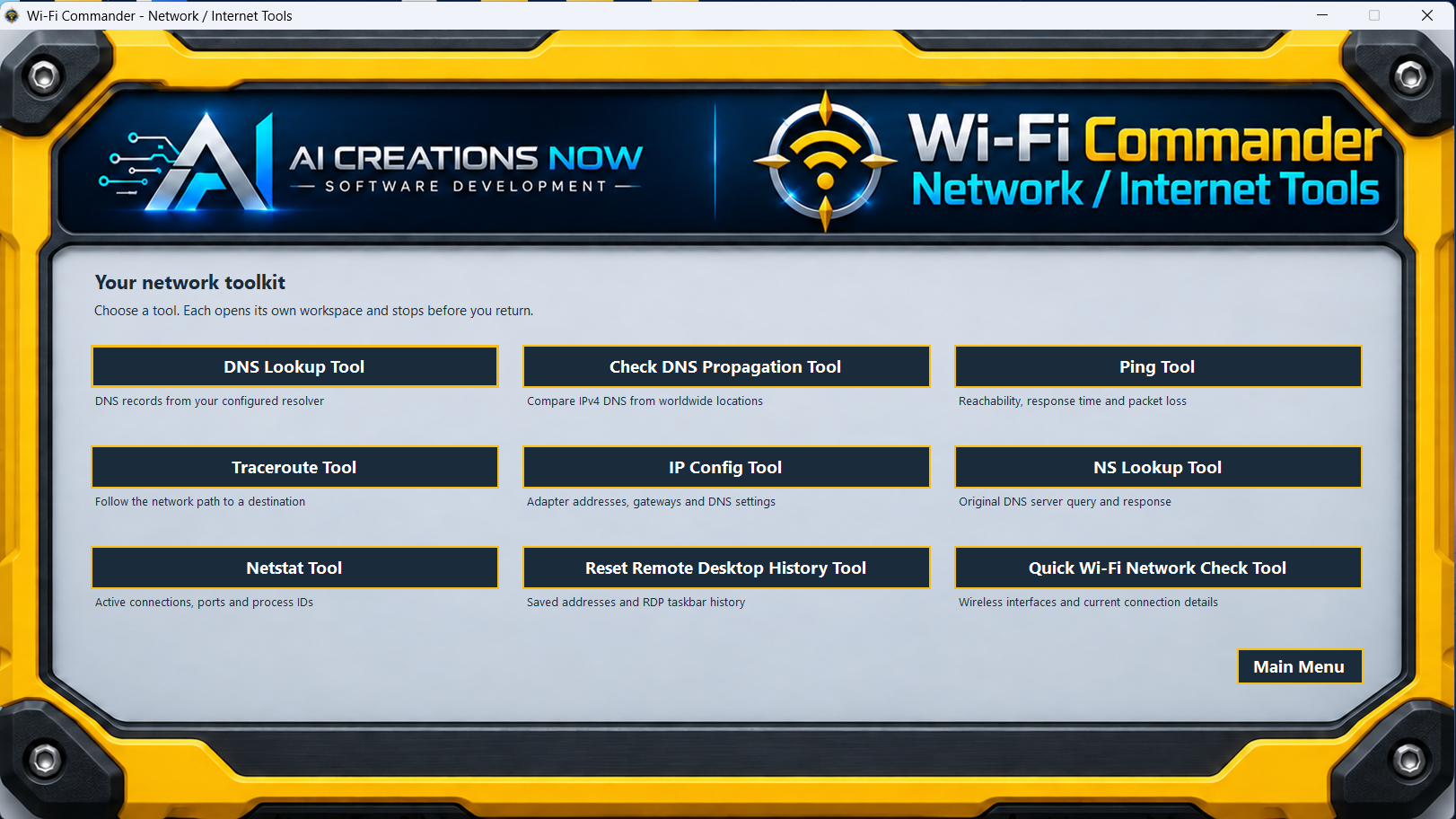
Actual yellow Network Internet Tools menu with nine diagnostic and cleanup buttons
NETWORK / INTERNET TOOLSA familiar place for everyday diagnostics.

Choose from DNS Lookup, DNS Propagation, Ping, Traceroute, IP Config, NS Lookup, Netstat, Quick Wi-Fi Network Check, and Reset Remote Desktop History. Individual tools provide their own action, cancel, and return controls.

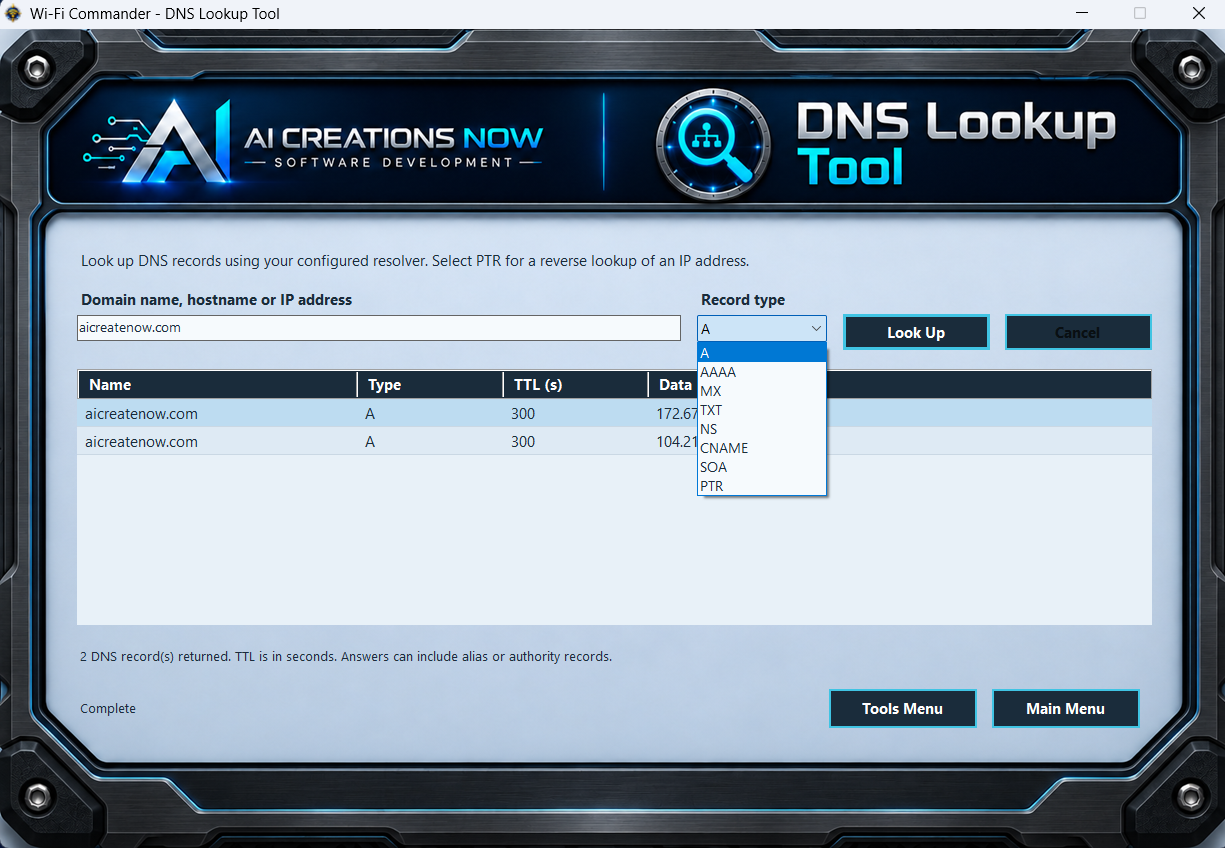
DNS LookupFind the address and records behind a website.

Enter a domain, host name, or IP address and choose the record type. Read the returned name, record type, cache lifetime (TTL), and data. Choose A or AAAA for addresses, MX for mail, or another supported record type; PTR looks up a name from an IP address.

DNS Lookup Tool with record-type menu and a table of returned DNS records
Actual DNS Lookup screen. Select the image for a closer look.
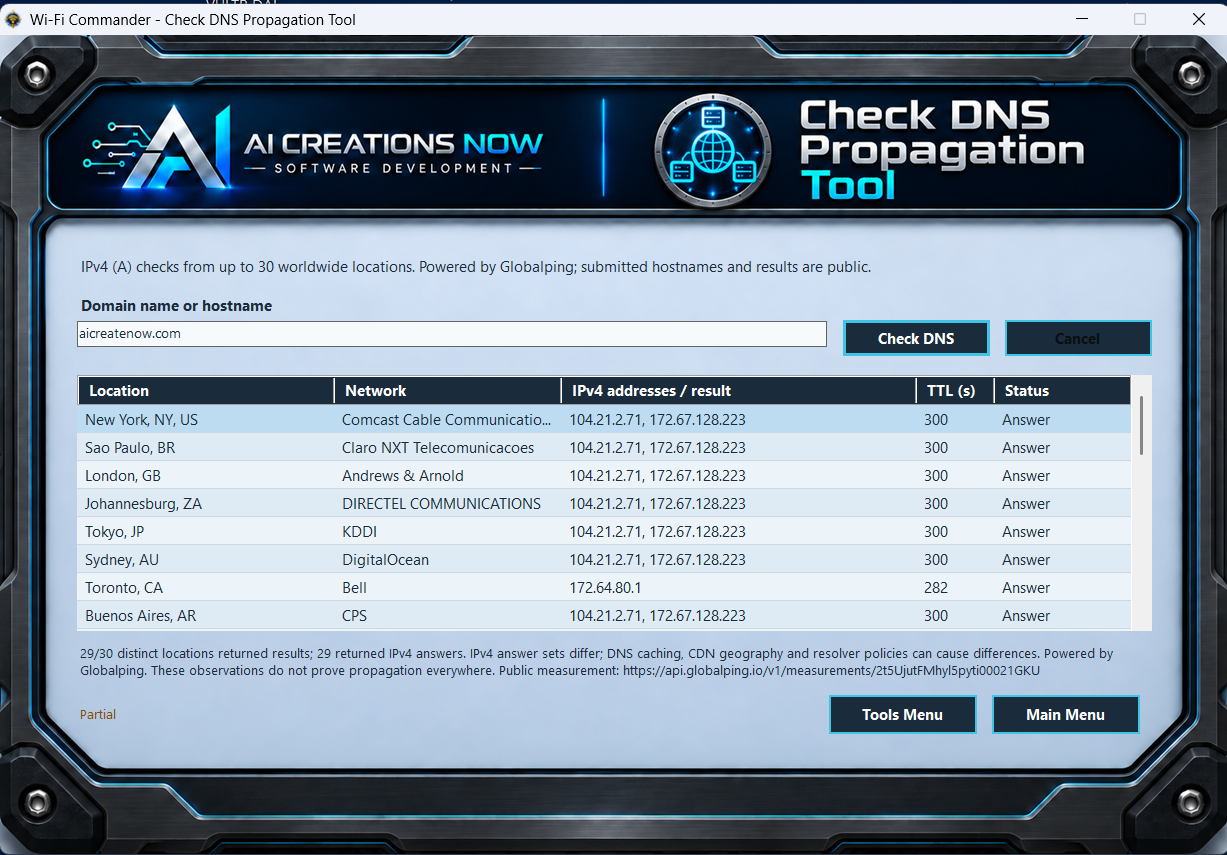
Check DNS PropagationCompare a domain’s DNS answers around the world.

Check public IPv4 address records from up to 30 worldwide locations through Globalping. Review each location, provider, answer, and status after a DNS change. This is a sample of available locations, not proof every DNS cache is updated. Submitted names and measurement results are public.

Check DNS Propagation Tool showing worldwide locations and IPv4 DNS answers
Actual Check DNS Propagation screen. Select the image for a closer look.
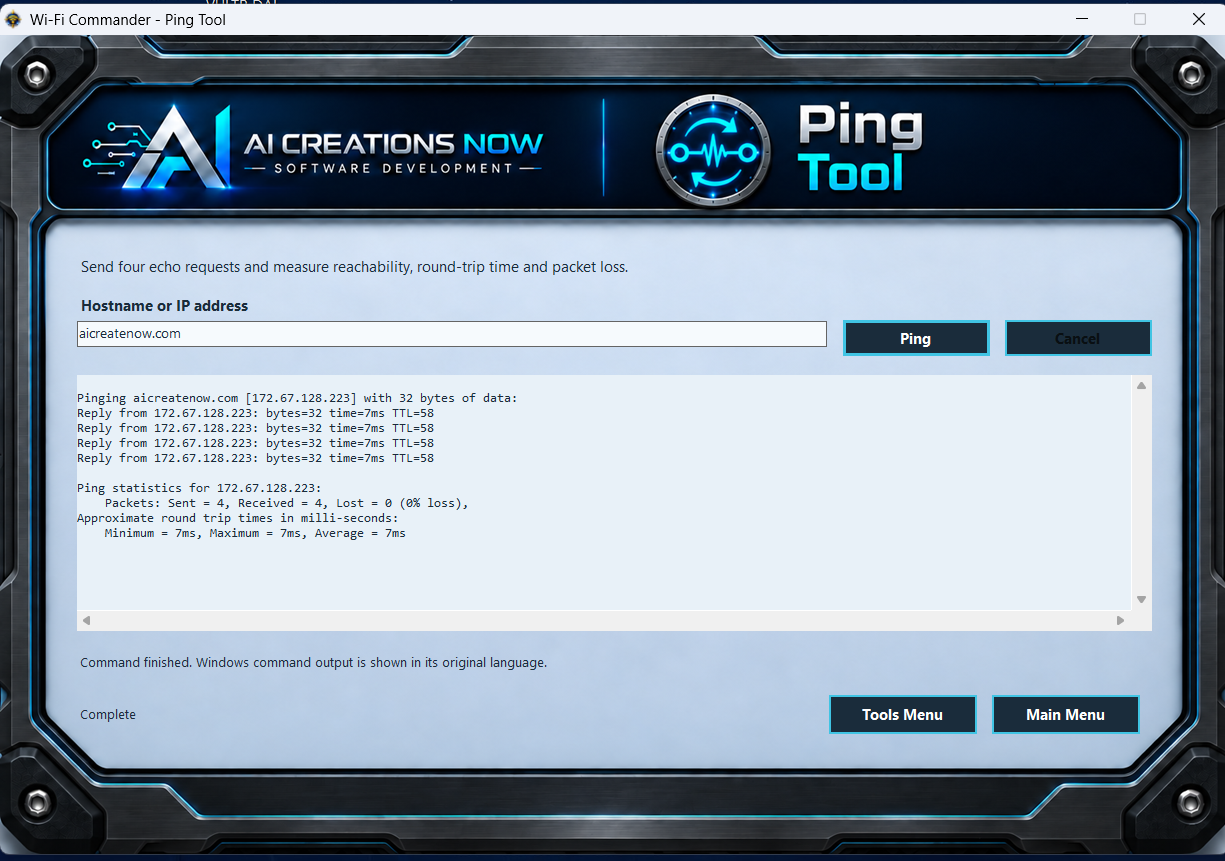
PingSee whether a destination replies—and how quickly.

Enter a host name or IP address to send four test requests. Review the replies, response times, and packet-loss summary. A destination may block ping, so a missing reply alone does not prove that the Internet connection is down.

Ping Tool showing four Windows ping replies and response-time statistics
Actual Ping screen. Select the image for a closer look.
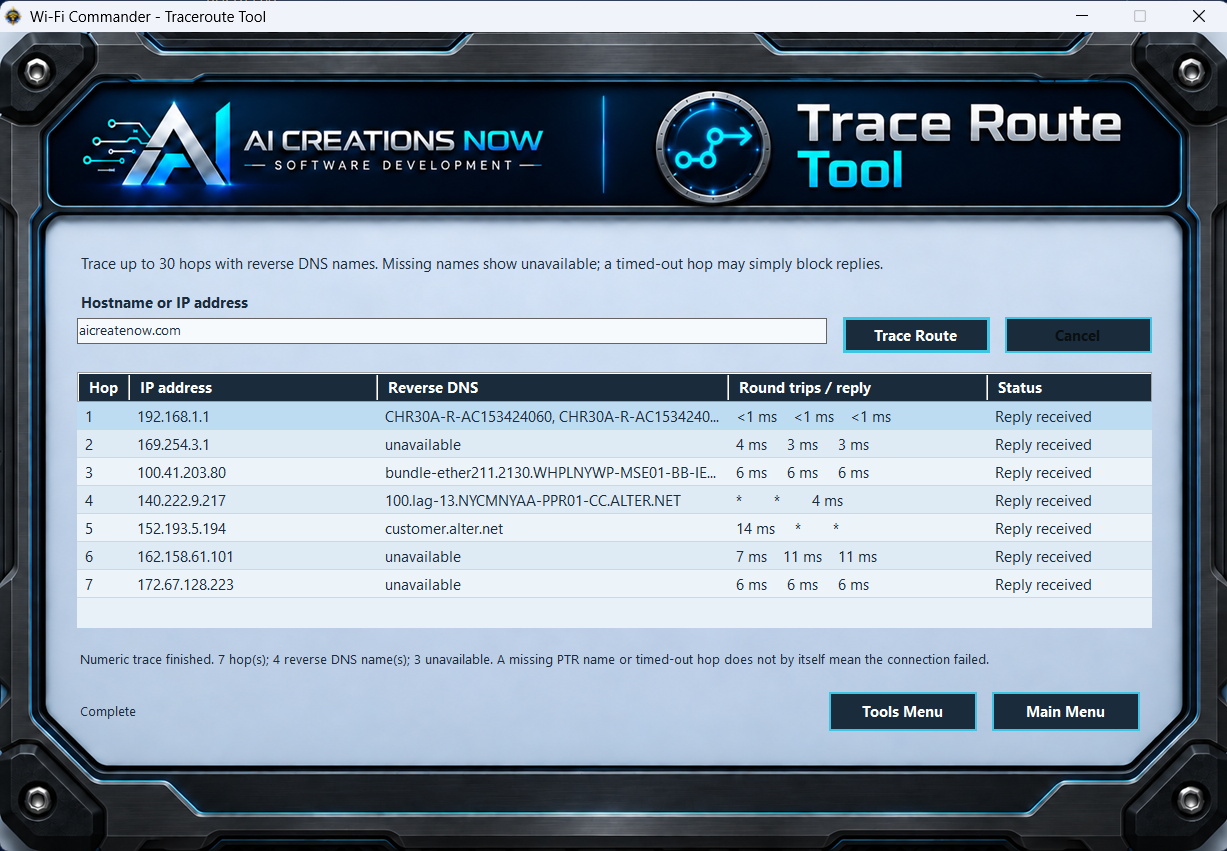
TracerouteFollow the responding steps along a network route.

Enter a destination to view up to 30 network hops, with addresses, available host names, and three response-time measurements per hop. Some routers do not answer these requests; a timed-out hop does not necessarily mean a broken route.

Trace Route Tool with hop numbers, addresses, reverse DNS names and round-trip times
Actual Traceroute screen. Select the image for a closer look.
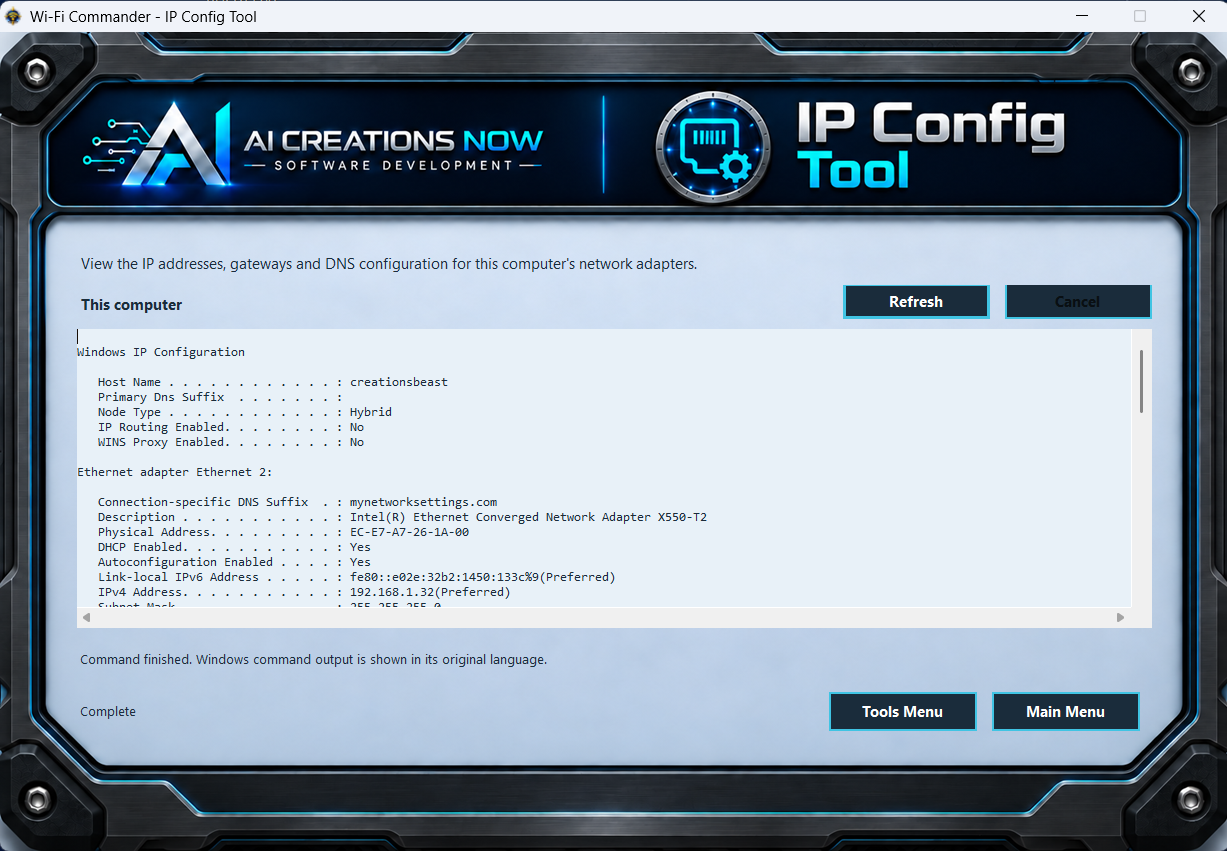
IP ConfigFind this computer’s network settings.

Review a read-only snapshot of your adapters, IP addresses, default gateways, and DNS settings. Refresh to read the latest configuration. This tool displays the Windows information without changing your network settings.

IP Config Tool displaying the computer network adapter configuration
Actual IP Config screen. Select the image for a closer look.
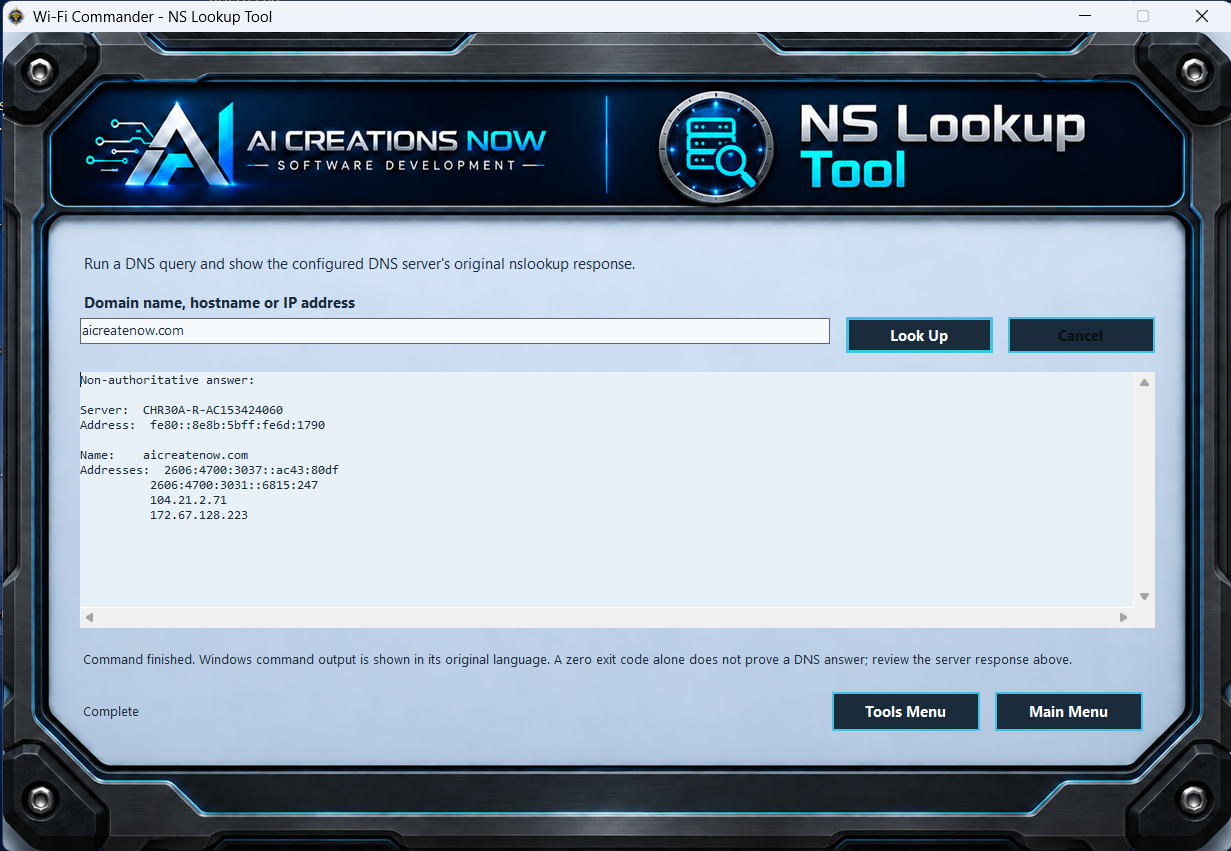
NS LookupRead the original reply from your DNS server.

Query a domain, host name, or IP address through the computer’s configured DNS server and inspect the original Windows response. Use this when you want to see the resolver’s answer in its familiar command-output format.

NS Lookup Tool displaying the configured DNS server and returned address records
Actual NS Lookup screen. Select the image for a closer look.
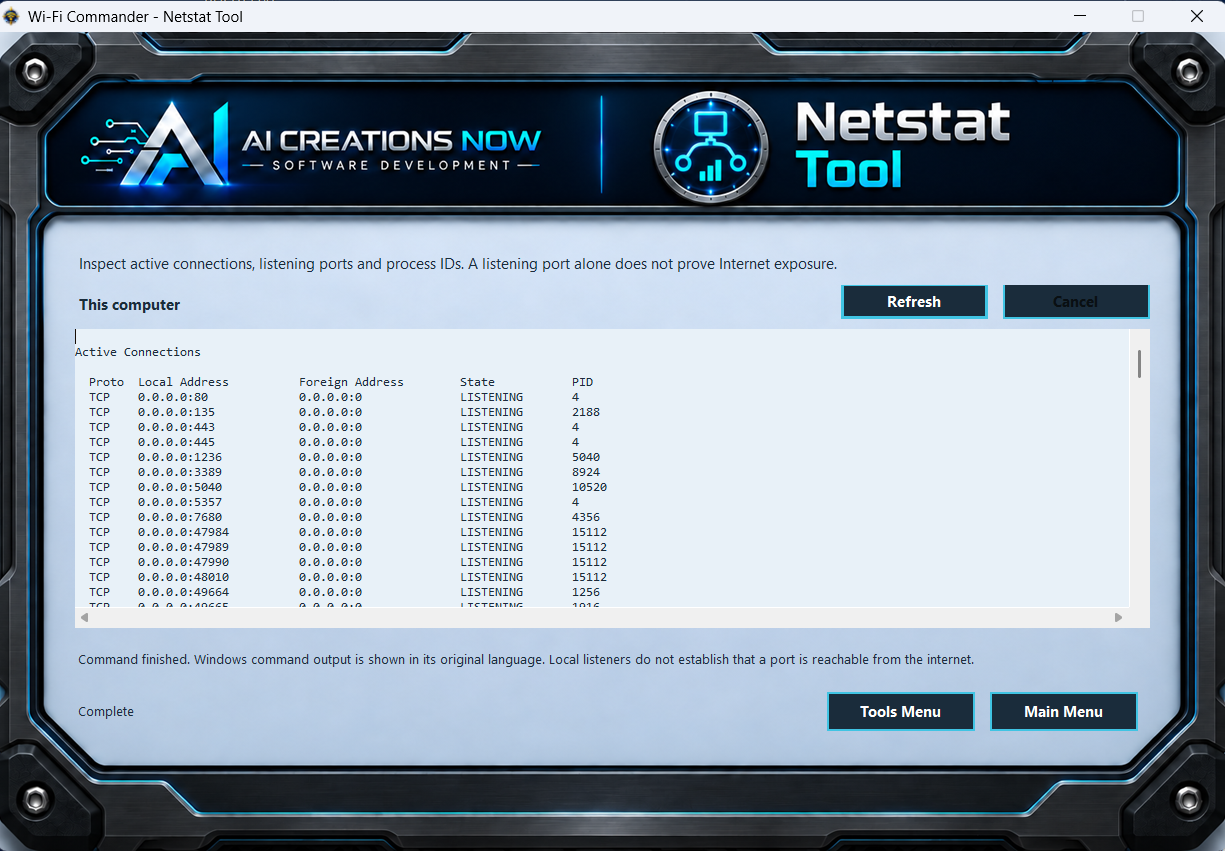
NetstatInspect connections and the programs behind them.

View a current snapshot of network connections, listening ports, connection states, and process IDs. Refresh when you need updated information. A local listening entry does not by itself show that a port is reachable from the Internet.

Netstat Tool displaying connection protocols, local and remote addresses, states and process IDs
Actual Netstat screen. Select the image for a closer look.
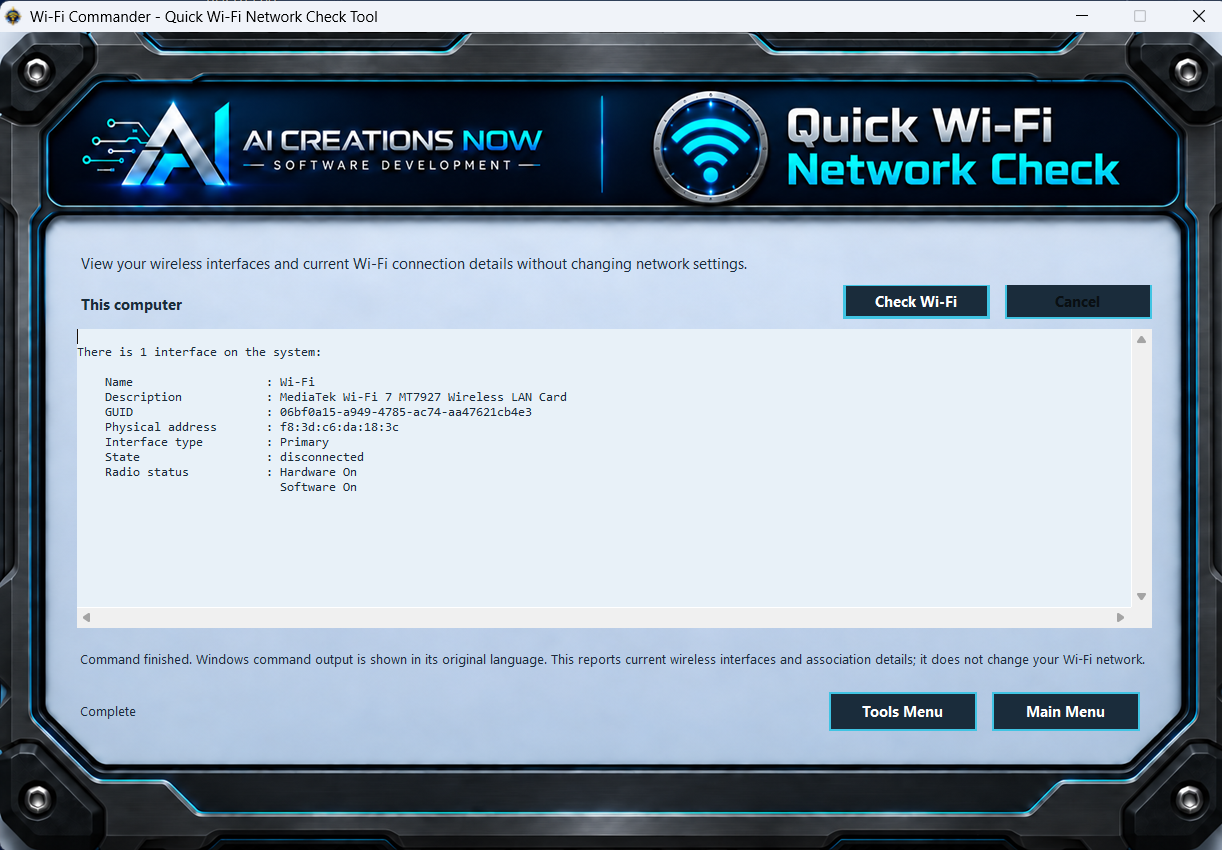
Quick Wi-Fi Network CheckTake a quick look at your wireless interface.

Review the wireless adapters and current connection details reported by Windows, including connection state, network name, radio, channel, signal, and link rates when available. This is a connection snapshot; use Range Finder for nearby networks and Mesh Analyzer for your selected equipment.

Quick Wi-Fi Network Check Tool displaying Windows wireless interface information
Actual Quick Wi-Fi Network Check screen. Select the image for a closer look.
Reset Remote Desktop HistoryClear remembered Remote Desktop connection addresses when you choose.

Close Remote Desktop, then confirm the cleanup. This removes the current user’s recent connection addresses, Remote Desktop taskbar connection list—including pinned connections—and saved address fields in the default connection file. Saved credentials, passwords, and other connection settings are preserved. This is an optional cleanup action, not a complete deletion of Windows activity logs.

Actual Wi-Fi Commander screens are shown throughout this page. Example readings reflect the network and hardware used for the screenshots; your results will vary. Select any screenshot to open it at full size.

CHOOSE THE COMPUTER FOR THE JOB

Walk with Wi-Fi. Work with Ethernet.

Wi-Fi Commander is a Windows desktop application. A laptop or compatible Windows tablet makes it easy to compare wireless coverage; a desktop remains useful for Internet and local-network checks.

What you want to doWhat you need
Run Wi-Fi CommanderWindows 10 or Windows 11 with support for x64 desktop applications, .NET Framework 4.8 or later, and Windows PowerShell 5.1.
Use Range Finder or Mesh AnalyzerAn enabled, compatible Wi-Fi adapter. Allow Windows Location / nearby-network access when requested so Windows can provide scan results.
Walk through your homeA compatible Windows laptop or tablet with Wi-Fi. Available band and device information depends on your adapter, drivers, Windows, and network equipment.
Check Internet, LAN, traffic, or portsAn active Wi-Fi or Ethernet connection. Online tests need Internet access; the download benchmark also uses the Windows curl utility.
Activate your licenseYour purchased key and an Internet connection. Windows may ask for permission to save protected trial or activation information.

BEFORE YOUR FIRST SCAN

A few useful answers.

How does the two-day free trial work?

At first launch, choose the two-day trial or enter your license key to activate immediately. The trial starts when you choose it, then runs for 48 elapsed hours—even while the app is closed. When the trial expires, activation is required to continue. A lifetime license costs $4.99 for one computer, with no subscription.

Can I purchase first and skip the trial?

Yes. Choose Purchase License Immediately, then enter your license key in the app and activate online. You do not need to begin the trial first. A successful activation is saved on your computer.

Can I use it on a desktop connected by Ethernet?

Yes. Internet Health, Live Bandwidth, LAN Monitor, Network and Port Monitor, and the general network tools work over Ethernet. Range Finder and Mesh Analyzer require enabled Wi-Fi hardware to scan nearby networks. Quick Wi-Fi Network Check also needs a wireless interface to report Wi-Fi details.

Does it work on a Windows tablet?

Use a Windows 10 or 11 tablet that supports x64 desktop applications, with a compatible Wi-Fi adapter for wireless scans. This download is a Windows application; it is not an iPad, Android, or phone app.

Will it automatically improve or reconfigure my Wi-Fi?

It gives you measurements to make better-informed decisions. Compare coverage, try a different router or mesh placement, and measure again. It does not change router settings, choose channels for you, or guarantee a particular speed improvement.

What happens if my laptop switches to another mesh node?

The current mesh session stops when the connected access point, network, or adapter changes, or the connection drops. Restart the session to continue from the new connection. This keeps each session’s comparison tied to its starting connection.

Is the live upload rate an Internet speed test?

No. Live Bandwidth Monitor reads the data moving through one physical adapter, including local-network traffic. Internet Health runs a separate download benchmark. It does not run an upload benchmark.

Does the benchmark use much data?

Each download test requests about 100 MiB. Four initial tests use about 400 MiB, with later tests spaced at least two hours apart. Pause stops active monitoring and transfers. Resume or Restart begins a fresh session and its initial test series. Consider your allowance if you use a metered connection.

Does a reachable public port mean this computer is exposed?

Not necessarily. Network and Port Monitor checks whether a TCP port responds at your public IPv4 address. The response can come from a router or another forwarded device. It does not identify the device behind the router, and does not externally test UDP or public IPv6.

What information do the online features use?

Some diagnostics contact online services to run their tests. For example, DNS Propagation submits public measurements through Globalping, and online activation sends the information needed to register the computer. Read the complete Wi-Fi Commander Privacy Policy for the data used by each feature.

TWO DAYS TO EXPLORE YOUR CONNECTION

Put your network in focus.

Start in the room where you use Wi-Fi most. Choose your equipment, compare the signal, and see what your connection can tell you.

Download Two-Day Free Trial Purchase License ImmediatelyFree two-day trial · $4.99 lifetime license
One computer · Windows x64 · No subscription

Built by AI Creations Now Software DevelopmentQuestions before getting started? Call 1-866-315-4750.

Read Our Privacy Policy →