1-866-315-4750
Menu
AI Creations Now HW Info 64 Profile Loader. Sensor layouts, easy to switch. Ten profile slots, protected stock, 100% free. Independent companion for HWiNFO64.

FREE WINDOWS SOFTWARE • VERSION 1.8.3

HW Info 64 Profile Loader

Keep the sensor layouts you use most, ready when you need them. Save a protected starting point, build your own profile library, and switch your HWiNFO64 sensor configuration from one compact app.

10 TOTAL PROFILE SLOTSPORTABLE WINDOWS X64NO SUBSCRIPTION
Download Free — Windows x64 Donate with Stripe Completely free. Optional, non-charitable donations help support customer service and product upgrades. Thank you. See the Setup Guide Product video

THE RIGHT SENSOR VIEW FOR EVERY TASK

Set it up once. Keep it ready.

Your everyday monitoring view, a memory-focused setup, and a lean diagnostic layout can each have their own place in your profile library.

Configure your sensors in HWiNFO64, then save that configuration with a name you recognize. When you need it again, select Load and confirm. The loader closes a running HWiNFO64 normally, waits for it to exit, applies the selected profile, and reopens it when its location is known.

HW Info 64 Profile Loader demonstration

Product video coming soonIn the meantime, explore the actual application in the four-step guide below.

The demonstration plays muted where your browser allows autoplay. Use the playback controls to pause, adjust sound, or watch full screen.
Begin with a complete stock profile.

Before your first save, open HWiNFO64 Sensors and make sure every sensor you normally want is being read and displayed. Stock Profile 1 is your saved starting configuration. It stays protected for later restoration.

THE COMPLETE WORKFLOW

Save your starting point. Build your own library.

Use HWiNFO64 to choose what you monitor and log. Use the loader to keep those sensor configurations organized and ready to restore.

01

Protect your stock setup

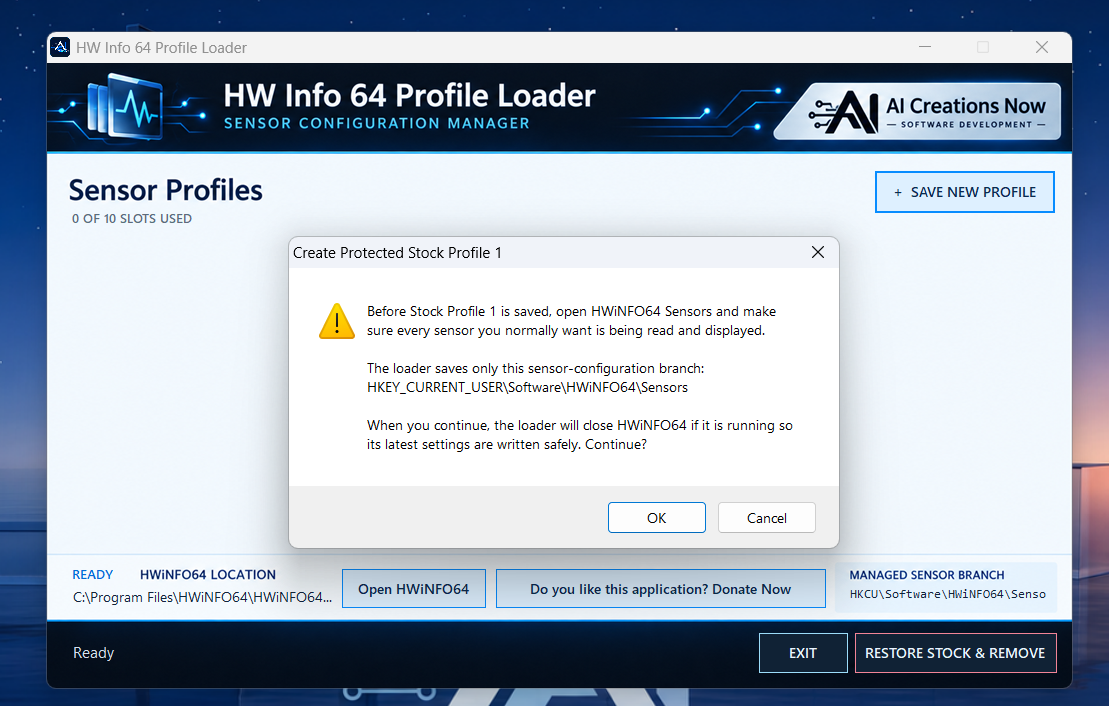
Review your full sensor view, then confirm the first-run prompt to capture Stock Profile 1. This protected profile uses the first slot.

02

Choose your focus

Adjust the sensor configuration in HWiNFO64 for your next task: everyday monitoring, memory checks, CPU diagnostics, or another focused view.

03

Save a named profile

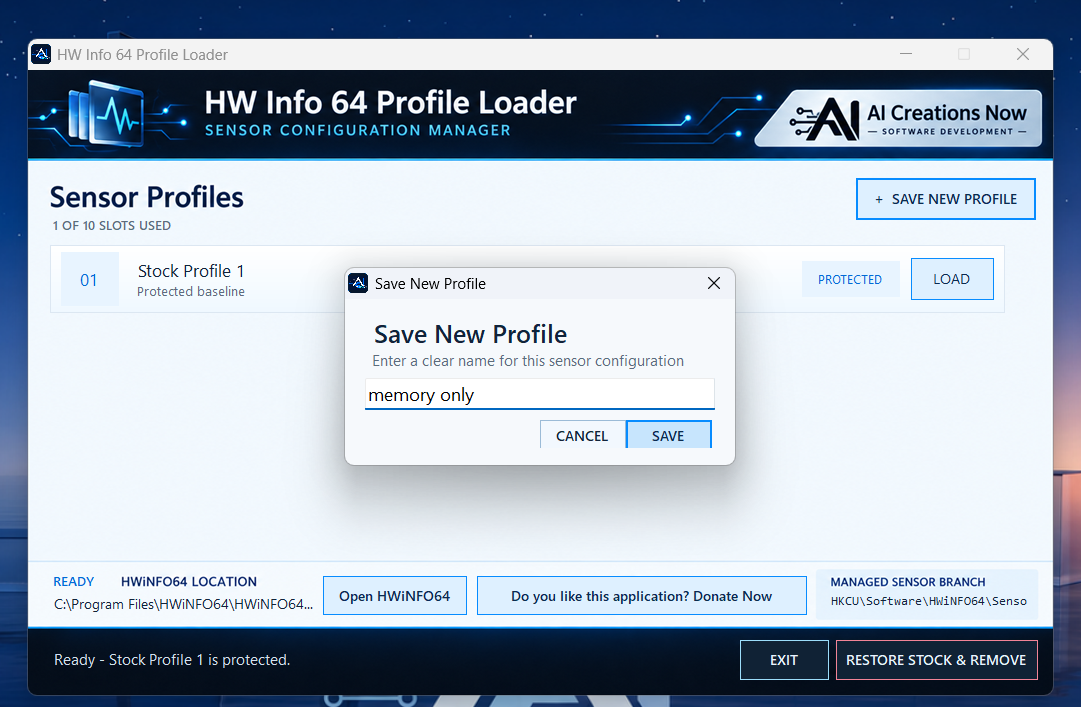
Select Save New Profile and give the setup a useful name. There are nine custom slots alongside your protected stock profile.

04

Load when needed

Select Load and confirm. The loader closes HWiNFO64 if needed, applies the selected configuration, and opens the detected copy after a successful load.

05

Keep profiles organized

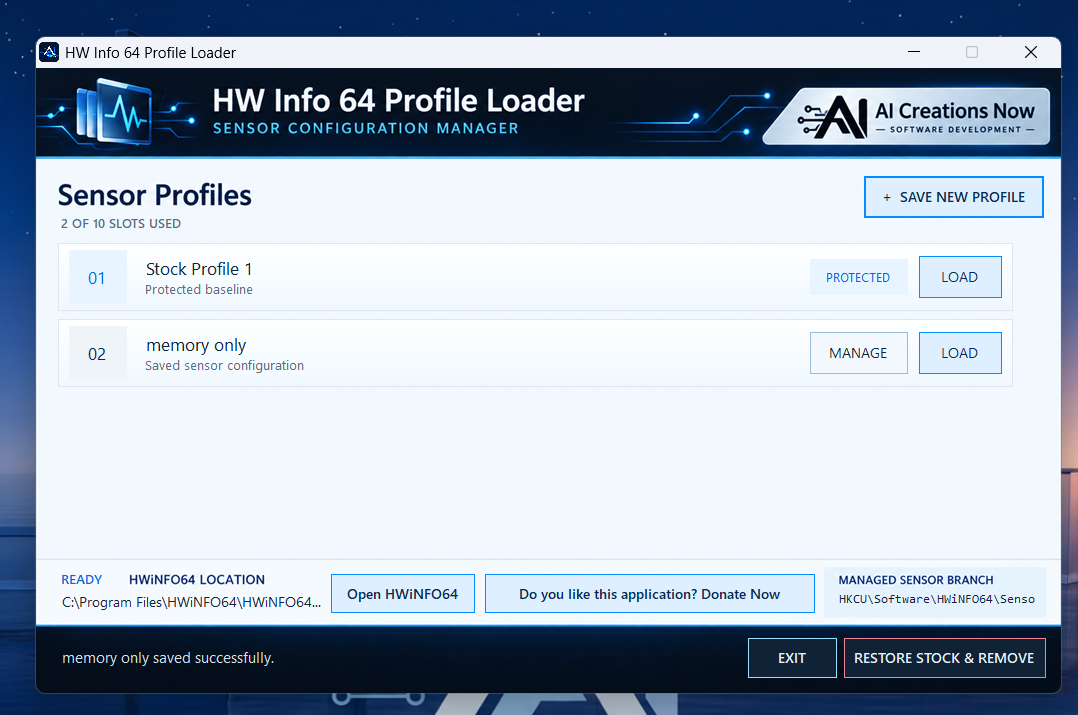
Use Manage on a custom profile to update it from your current configuration, rename it, or delete it. Stock Profile 1 stays protected.

06

Return to stock

Load your saved baseline whenever needed. Restore Stock & Remove restores that baseline first, then removes the loader’s saved profile data.

ACTUAL WINDOWS SOFTWARE

A guided first save. A clear profile library.

Follow the real application from its stock-profile warning to a saved custom layout. Select any screenshot to open the full-size image.

Review the stock-profile warning in the actual HW Info 64 Profile Loader application
1
Review the stock-profile warning

Before continuing, make sure every sensor you normally want is being read and displayed in HWiNFO64. Confirm the prompt to capture your starting configuration.

Keep your protected starting point in the actual HW Info 64 Profile Loader application
2
Keep your protected starting point

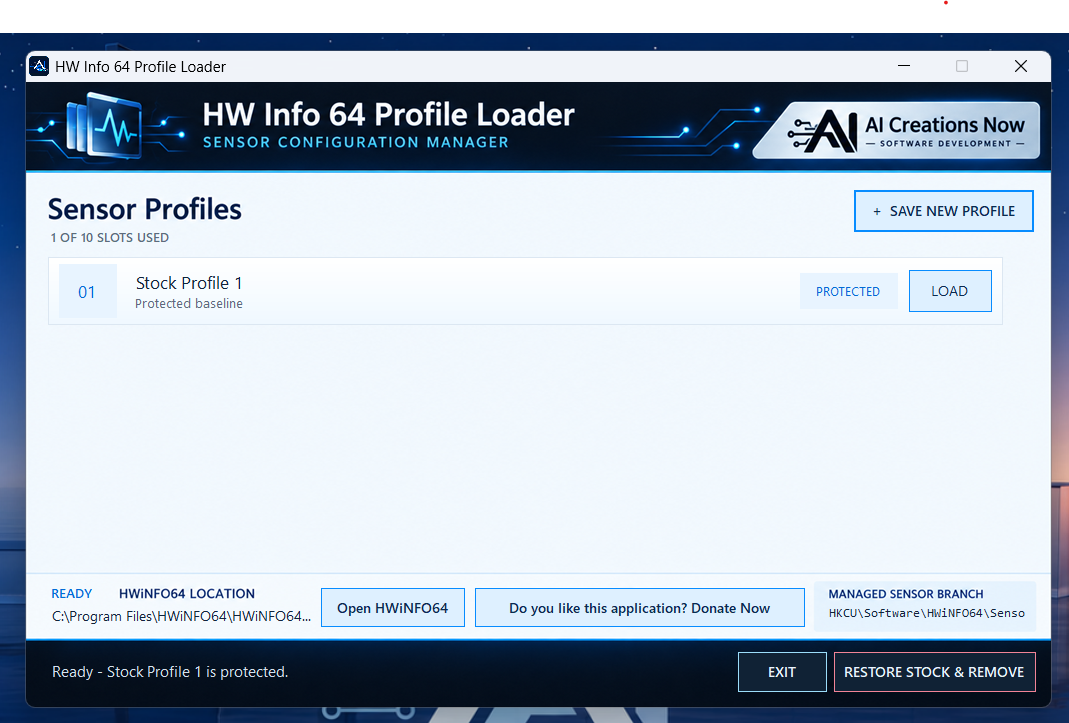
Stock Profile 1 appears in the first slot with a Protected label. Its Load button restores your saved baseline whenever you need it.

Give the new configuration a name in the actual HW Info 64 Profile Loader application
3
Give the new configuration a name

Change your sensor view in HWiNFO64, choose Save New Profile, and enter a recognizable name. This example uses “memory only.”

Load or manage the saved profile in the actual HW Info 64 Profile Loader application
4
Load or manage the saved profile

Your custom profile appears beneath Stock Profile 1. Use Load to restore it, or Manage to update, rename, or delete it.

ONE LIBRARY. DIFFERENT TASKS.

Keep the views you actually use.

You create each layout in HWiNFO64. The loader remembers your configurations without requiring you to rebuild the same sensor view each time.

Everyday monitoring

Keep a broad sensor view for the clocks, temperatures, utilization, and power readings you check regularly.

Focused diagnostics

Save a smaller selection of relevant sensors for CPU, memory, or other troubleshooting work. HWiNFO64 continues to perform the monitoring and logging.

A familiar starting point

Return to the complete configuration captured in Stock Profile 1 when a focused session is finished.

LOCAL PROFILES. CLEAR BEHAVIOR.

Built around your sensor configuration.

The loader saves and restores the HWiNFO64 Sensors registry branch. Your profile files remain in the loader’s local ProgramData folder.

Normal close before changes

A running HWiNFO64 is asked to close so it can finish writing its settings. If it cannot close, the save or load stops instead of proceeding with an active process.

Protected stock profile

The first profile cannot be renamed, overwritten, or deleted through the library. Custom profiles have their own Load and Manage controls.

Remembered sensor warnings

Custom-profile loads preserve the sensor-warning acknowledgments managed by the loader. Loading Stock Profile 1 deliberately resets them so applicable warnings can appear again.

BEFORE YOU START

A Windows companion for HWiNFO64.

The loader manages saved sensor configurations. HWiNFO64 supplies the sensor readings and logging capabilities.

You need

  • Windows 11, 64-bit
  • HWiNFO64 installed, or a portable HWiNFO64 copy
  • Administrator permission when Windows requests it
  • An existing sensor setup to capture as your stock profile
  • The same Windows user account when saving and loading your profiles

Getting started

  • Keep the portable loader executable in a folder of your choice.
  • Open HWiNFO64 and prepare your complete starting sensor view.
  • Run the loader and follow the protected-stock prompt.
  • Use Open HWiNFO64 to start your installed or portable copy.
  • If automatic detection cannot find it, select HWiNFO64.exe or HWiNFO64Pro.exe once.

COMMON QUESTIONS

Simple answers before your first profile.

What is saved, how switching works, and how to return to your starting configuration.

Is it really free? Do I have to donate?

Yes, it is completely free. No donation, activation key, or subscription is required. We appreciate optional, non-charitable donations because they help support customer service and ongoing product upgrades. Donating does not unlock a separate paid edition. HWiNFO64 is a separate product with its own terms.

Do the ten slots include Stock Profile 1?

Yes. You get one protected Stock Profile 1 and up to nine named custom profiles. Use Manage to update, rename, or remove a custom profile.

Can HWiNFO64 be running when I save or load?

Yes. Confirm the close prompt and the loader requests a normal shutdown, waits for the process to exit, then saves or loads. If HWiNFO64 stays in the notification area or has a dialog open, close the dialog and choose Quit from its notification-area menu. If the operation times out, retry after it has exited.

Does it work with portable HWiNFO64?

The loader checks the running copy, the last saved location, nearby portable folders, Windows application paths, and standard installation folders. If it cannot locate your copy, Open HWiNFO64 lets you select the executable and remembers its location.

Where are my profiles stored?

They are kept locally in C:\ProgramData\HW Info Loader. Stock.reg holds the protected baseline; custom REG files and the profile list are kept alongside it. The saved sensor settings belong to the Windows user running the loader.

What does Restore Stock & Remove do?

It restores your captured Stock Profile 1 first. After a successful restore, it removes the loader’s profile-data folder and saved custom profiles. The portable EXE stays where you placed it and can be deleted separately. The applicable sensor-warning dialogs are reset as part of restoring stock.

Does this change my processor settings or log the sensors itself?

No. Use HWiNFO64 to choose and log your sensors. This utility saves and restores sensor configurations; it does not apply CPU tuning settings, perform a benchmark, or diagnose a hardware fault.

100% FREE • PORTABLE WINDOWS X64

Your next sensor setup is already saved.

Keep your full view, save your focused layouts, and return to stock when you need it. A small utility built to make switching sensor configurations easier.

Download Free — Windows x64 Donate with Stripe Completely free to use. Your optional, non-charitable donation helps fund customer service and future product upgrades. Thank you for your support. Free signed download • No purchase or activation key required

INDEPENDENT COMPANION • FREE TO USE

Built by HWiNFO enthusiasts, for power users.

We are fans of HWiNFO and created this companion to make saving and switching named sensor configurations more convenient. It adds a profile-library workflow around saved settings; HWiNFO64 remains the application that monitors and logs your hardware.

Independence and trademarks. HW Info 64 Profile Loader is developed and supported independently by AI Creations Now Software Development. We are not affiliated with, sponsored, endorsed, funded, or paid by Martin Malík or REALiX, s.r.o., the developer of HWiNFO, and we do not act as their advertising representative. HWiNFO and HWiNFO64 are names and marks belonging to their respective owner and are used only to identify compatibility. HWiNFO64 must be obtained separately and remains subject to its own license and terms.

Free software. Optional coffee tips. Our companion application is completely free. Optional, non-charitable tip-jar donations go to AI Creations Now to support our customer service and product upgrades. A donation is not required to download or use this utility, is not a payment for HWiNFO, and does not purchase a HWiNFO license.

Use and responsibility. This utility changes saved sensor settings, which can affect your monitoring and logging configuration. Keep an independent backup of important settings. To the extent permitted by applicable law, the utility is provided “as is,” without warranties of merchantability, fitness for a particular purpose, or uninterrupted operation. AI Creations Now is not liable for lost settings, data loss, business interruption, or indirect or consequential losses arising from its use, to the extent permitted by law. Nothing in this notice excludes rights or liability that cannot lawfully be excluded.